Pre-Built Demos

SaaSio comes with a beautiful collection of modern, easily importable, and highly customizable demo layouts.

SaaSio Main
Online Payment
Digital Agency 2023
Digital Marketing 2023
NFT 2023
SaaS 2023
IT Solution 2023
Help Desk
IT solution 2023 (V.2)
Law Firm
Cryto Currency
SaaSio NFT
SaaS Classic
SaaS Modern
Digital Agency
Marketing Agency
Digital Marketing
App Landing
Digital Agency 2
Business Consult-4
Personal Portfolio
Creative Studio
IT Solutions-3
Business & Finance
Digital Agency
Business Consulting
Digital Agency
Finance Consulting
Marketing
Gym Fitness
Education
Travel Agency
It solution-2
Business Consult-1
Business Consult-2
Business Consult-3
HR Management
CR Management
Social Media Marketing
Software Management
Cyber Security
Email Marketing
Web Application
SEO Agency
Resturannt
IT Solutions-1
Digital SEO
Startup Agency
Dark Version Demo
SaaSio Main (Dark)
Dark Version Demo
SaaS Classic (Dark)
Dark Version Demo
Digital Agency (Dark)
Dark Version Demo
StartUp Agency (Dark)
Dark Version Demo
HR Management (Dark)
Dark Version Demo
SMM (Dark)
RTL Version Demo
SMM (RTL)
RTL Version Demo
Digital Agency (RTL)
RTL Version Demo
SaaSio Main (RTL)
RTL Version Demo
HR Management (RTL)
RTL Version Demo
CR Management(RTL)
Sign In Get started

PerXL Views

The PerXL software provides a variety of views that may be used to present the data and information in a visual and organised way. The different views are: Table, List, Calendar, Gantt and Kanban

Who can use the Views in PerXL?

  1. Any resource with a PerXL account can use the views.
  2. The Admin and the Manager accounts can view the details of all the resources task activities and events.

Calendar View

In PerXL you can use Calendar as a tool to help you manage and schedule employees' time and workloads. They can provide you visual representation of upcoming events, appointments, and deadlines, allowing you (the admin or manager) and other resorces to better plan and coordinate their work activities.


How to open the Calendar?

  1. Click on any section from the sidebar menu.

    AI Task Description feature

  2. A new page will appear containing all the tasks names of the current section.

    AI Task Description feature

  3. Click on the "Calendar" icon at the top of this page.
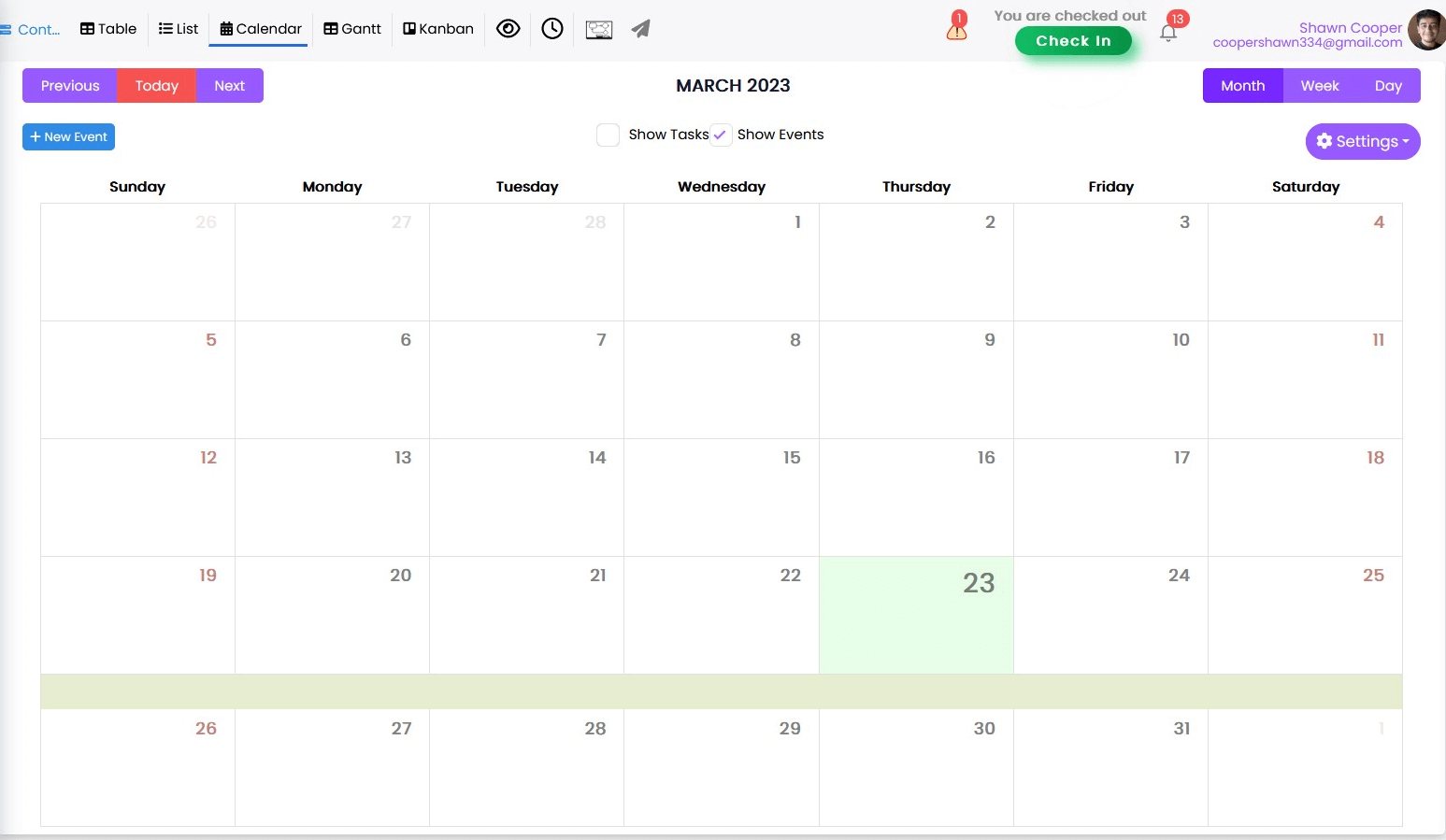
  4. A page as shown in the below give image will appear.

    AI Task Description feature

  5. At the top of the current page - click on "Previous" to view Previous month, "Next" for next month and "Today" to jump to current date.

  6. To modify the calendar view according to the desired time frame, please select the appropriate icon - 'Month', 'Week', or 'Day' - located at the top of the page.

Events and Creating Events in Calendar

An event is any scheduled appointment, meeting, deadline, or other important activity that requires tracking and organization. Events can be planned and scheduled in advance in PerXL, and they can contain information like the event's name, start and end timings, location, a description, and any other necessary elements.

  1. Follow the steps given to open the calendar.
  2. At the top left of the current calendar page click on button.
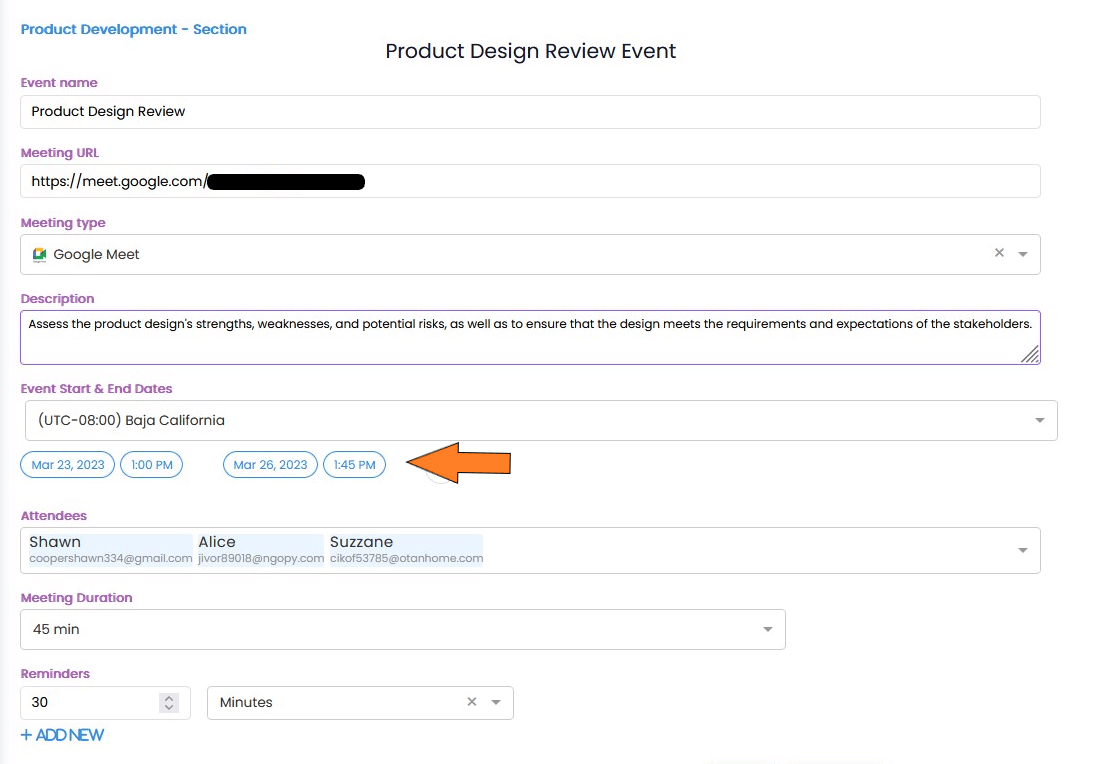
  3. A "Create a New Event" page will open. Fill the fields like Event name, Event start and End dates Meeting Url, Meeting type, etc.

    AI Task Description feature

  4. Click on Save button at the bottom of the page and event will be created

Updating/Deleting Events in Calendar

  1. Click on any section name from the sidebar menu
  2. A New page will appear containing all the tasks names of the current section.
  3. Click on the "Calendar" icon at the top of this page.
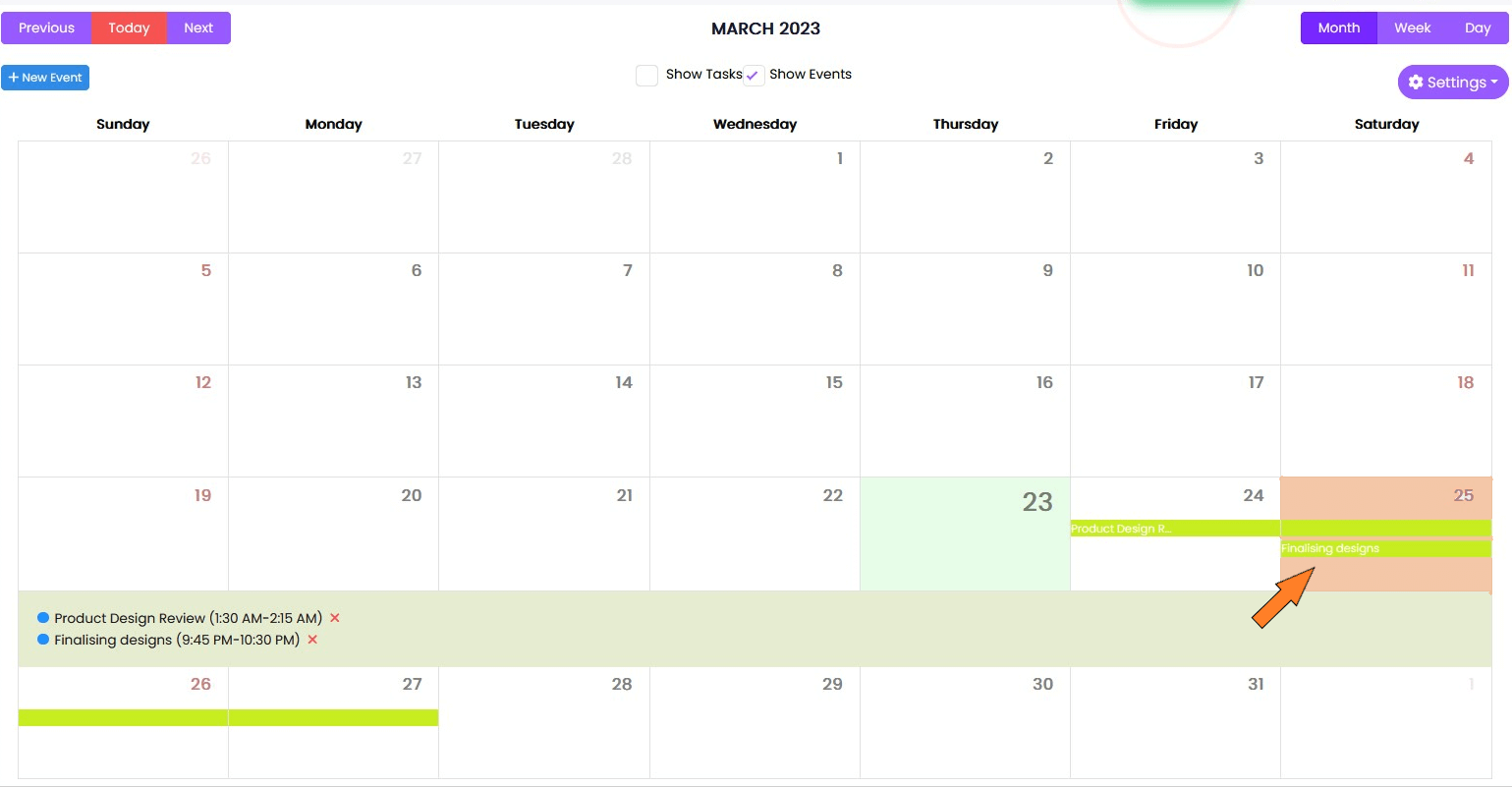
  4. Click on the event day in the calendar.

    AI Task Description feature

  5. Click on Cross icon beside the event name to delete the event.

    AI Task Description feature

  6. You will get confirmation prompt click "Yes" to delete the event.

    AI Task Description feature

    Note: You can also click on Cross icon beside the task name if you want to delete a task.

  7. In case you need to edit the event click on event name and a page will open with event name as heading.

    AI Task Description feature

  8. Edit the required fields and click on "Update" button to save changes.

Viewing tasks on the Calendar

  1. Follow the above given steps to open the calendar.
  2. You need the select the checkbox labeled "Show Tasks" also at the page top.

    AI Task Description feature

  3. The calendar will be populated with all the tasks and events on any given dates.
  4. Whatever date you select will display the tasks those which were being completed on that day and any events that happened or are going to happen.

    AI Task Description feature

  5. Upon clicking on a task/event name, detailed information pertaining to the specific task or event can be accessed.

    AI Task Description feature

    Note: To know more about task information go to Tasks and Subtasks.

Sync with Calendar

You can sync your calendar with the PerXL calendar to streamline scheduling and avoid scheduling conflicts. This ensure that important events are not overlooked.

Follow the given steps to sync with calendar:

  1. Follow the above given steps to open the calendar.
  2. Select Settings button at the page's top right corner.

    AI Task Description feature

  3. Click on "Sync with Calendar" icon. A new page will open.

    AI Task Description feature

  4. Click on "Sign in with Google" to log into your Google account or you can click Add Account to add another account.

    AI Task Description feature

  5. You can sync PerXL events to Google calendar or you can import events from Google calendar to PerXL.

    AI Task Description feature

  6. Click on Connect button to sync.

Gantt View

This view allows for a visual depiction of the start and finish dates of each job as well as dependencies between tasks. Tasks or projects are displayed as bars on a timeline in this view. Complex project planning and scheduling would benefit from it.

How to open Gantt View in PerXL?

  1. Click on a section name from the sidebar menu.
  2. A New page will appear containing all the tasks names of the current section.
  3. Click on the "Gantt" icon at the top of this page you will see the Gantt view for selected section.
  4. The names of the projects, their current status, and their planned and actual Start date, Finish date, and Duration will all be displayed in the left side.

    AI Task Description feature

    Note: y clicking and dragging the middle divider, you can enlarge either the right or the left side of the page.

  5. On right side of the current page you will see bars representing start and the end dates.
  6. Select the start and the end date in the given page.
  7. Click on the Search button to search in the required timeline.
  8. To modify the Gantt view according to the desired time frame, please select the appropriate icon from "Day, Week, Month, and Year. ". Like a weekly view given below.

    AI Task Description feature

Kanban View

PerXL offers you Kanban View that is designed to improve production efficiency. This view offers capabilities including the ability to assign tasks to team members, specify due dates, and attach files or comments to individual tasks, in addition to displaying the workflow. When they complete their jobs, this enables the teams to operate more efficiently while maintaining organization.

How to open Kanban View?

  1. Click on a section name from the sidebar menu.
  2. A New page will appear containing all the tasks names of the current section.

    AI Task Description feature

  3. Click on the "Kanban" icon at the top of this page you will see the Kanban view for selected section.
  4. You will see the Kanban mode with tasks represented as cards and page divided into statuses - "To Do," "In Progress," and "Completed".

    Note: You can create these statuses while creating a new section in a space or by editing them. click here to know how to create a section?.

    AI Task Description feature

    Note: You can drag the task from under one step to another to change its status. The completed tasks which have been approved at both levels cannot be taken out of the completed stage..

  5. Click on "+New Task" button to create a new task. To know more aboout tasks visit Tasks and Subtasks section.

Table and List View

The items are presented in a list or table manner in the PerXL list view and table view respectively, where each row represents to a certain task and each column shows a different attribute or piece of information about that task. There are columns for things like task name, assigned team member, due date, status, etc. in this view.

How to open Table and List View in PerXL?

  1. Click on a section name from the sidebar menu.
  2. A New page will appear containing all the tasks names of the current section.

    AI Task Description feature

  3. Clicking on the 'Table' option will open a page that resembles the one shown below.

    AI Task Description feature

  4. Select the 'List' option for List view and to open a page that resembles the one shown below with headers such as Priority, Task name, Assignee, etc.

    AI Task Description feature

    Note: You can use filter for various fields in both the "Table" and "List" view by clicking on the filter icon beside the heading names.


  5. Click on "+New Task" button to create a new task. To know more aboout tasks visit Tasks and Subtasks section.
  6. Select the icon at the top right of the page to select the fields that you want to be visible in the page.

    AI Task Description feature