Sign In Get started

Tasks and Sub-tasks

The fundamental unit of data in this product can be thought of as a task. Regarding tasks, we have defined Workspaces, Spaces, and Sections. Subtasks are a subcategory of information that is contained within tasks. Tasks are used to divide your project into manageable pieces, which helps in achieving achievable goals and improving team efficiency, thereby streamlining workflow.

Creating a new task

Who can create a new Task?

  1. Only the Admin and an account with the Manager privileges are allowed to assign tasks to other resources.
  2. Any user who is mapped to the Section can create a New Task.

How to create a new Task?

  1. On your workspace in the sidebar menu select a Space and then click on it.
  2. Select the Section/Project name in which you want to create the task.
  3. On the top right corner of the window click on +New Task icon
  4. This would open Create a new Task window in which you can add the Task name.

  5. Add the Estimated commencement date and time along with the Due date and time
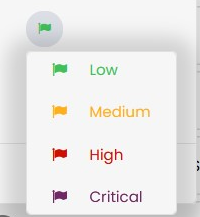
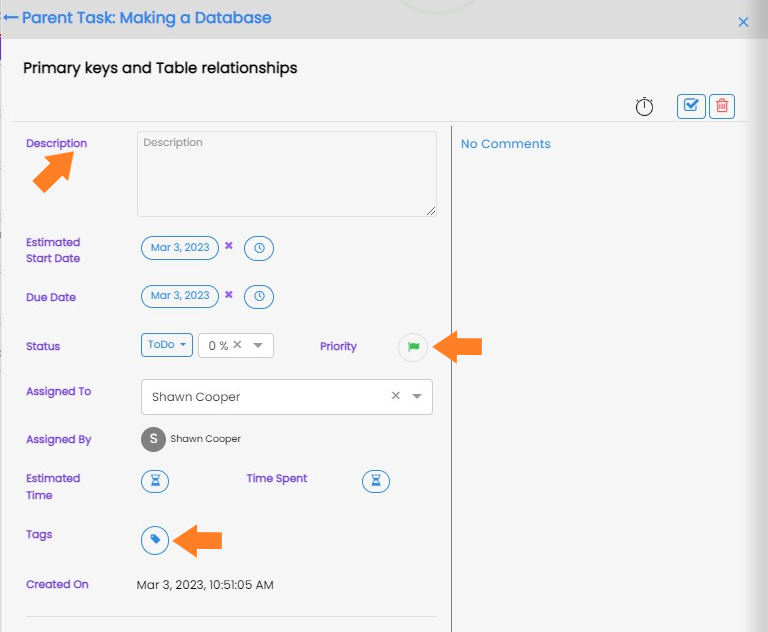
  6. You can also define the priority for this task by clicking on the flag icon. We allow 4 types of priority statuses - Low, Medium, High, and Critical.

  7. Select the resource to whom you want to assign the task.
  8. Click Save button to create the task.

Note: Please see the Settings section of PerXL hierarchy to find out more about who can assign a task and who can edit or change task properties.

Note: You can use the My Work Tasks menu in the sidebar to see all the information regarding the tasks given to you.

Creating a subtask

Subtasks are "Tasks within a Task" that have all the same features as a Task. They can be created if you want to divide your work further into smaller tasks so that it can be completed efficiently and in a time-bound manner.

Who can create a sub-task?

Any user can create a subtask, but only for the tasks that they have access to view based on their account permissions.

How to create a sub-task?
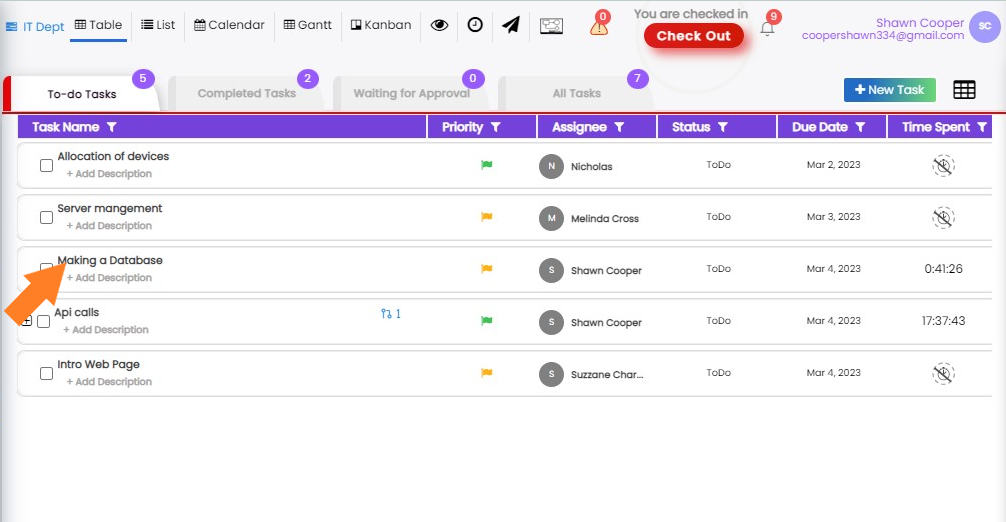
  1. Navigate to the task where you want to create a sub-task.
  2. Click on the "+Add Description" or "Task name" field.

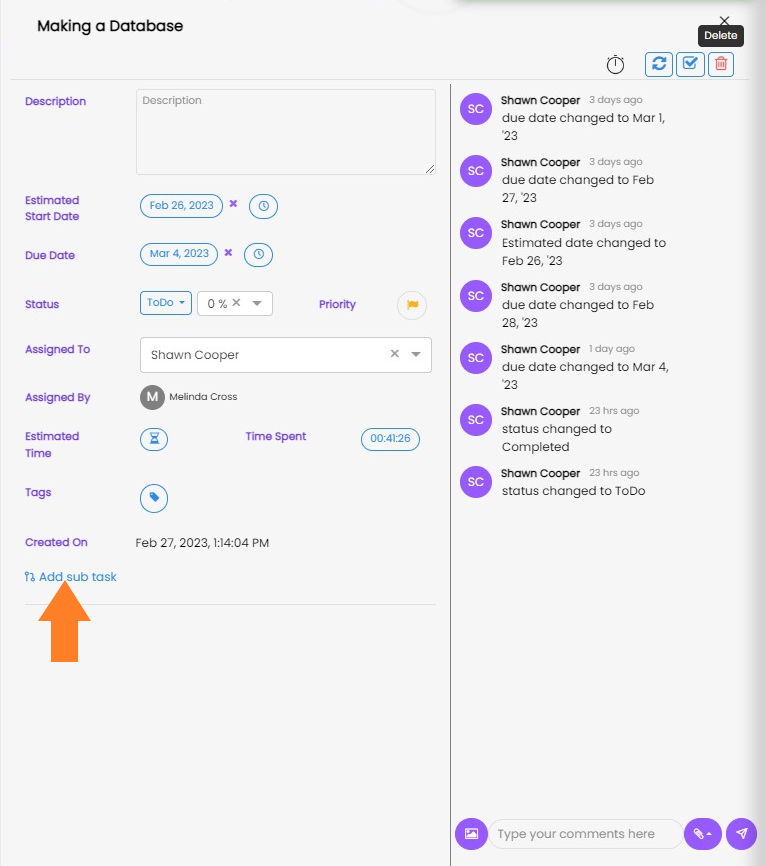
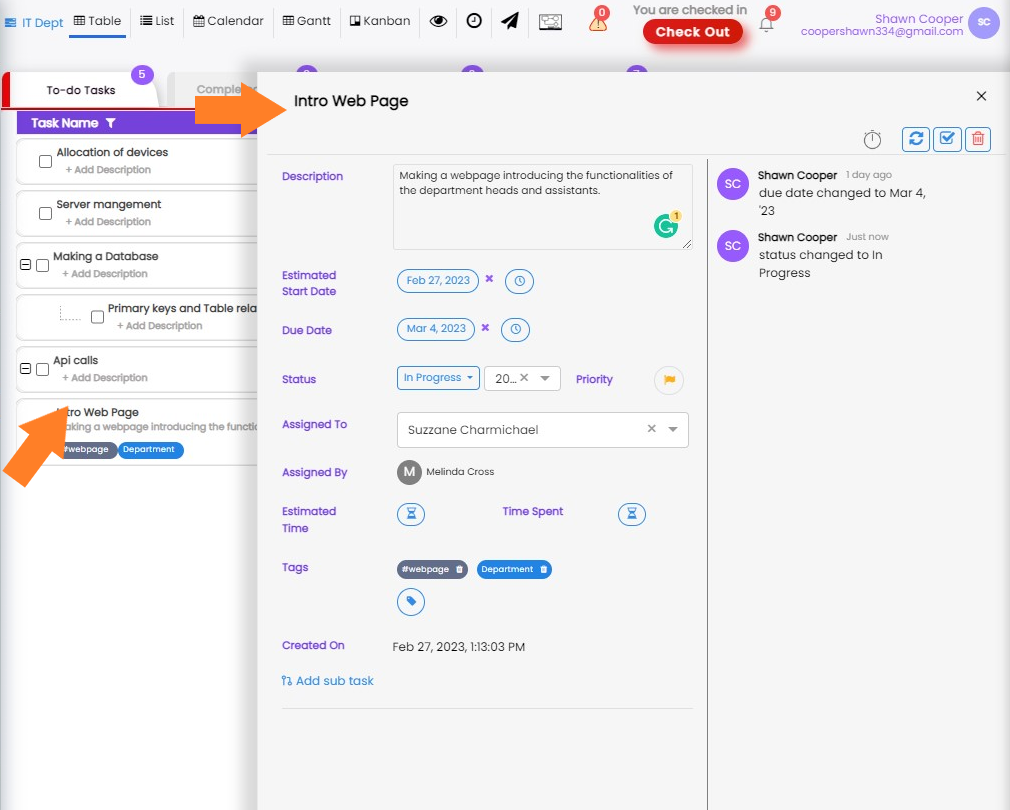
  3. A window with the task name will open. On the left pane of the window scroll to the end where you'll find Add Sub task icon. Click on it.

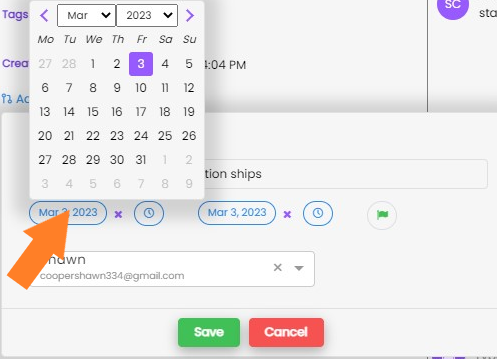
  4. Add the estimated commencement date and time along with the due date and time

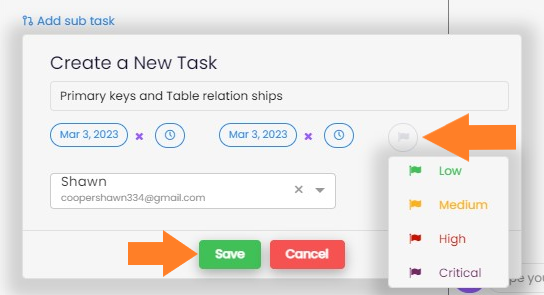
  5. You can also define the priority for this task by clicking on the flag icon.

  6. Select the resource for that sub-task and click "Save"

Note: If you want to assign subtasks to a role other than Admin or Manager you need to name them as assignee on the main task only then they can view the subtask given to them.

Note: You can also change the role settings to achieve the same.

Note: If you want create a new tag you need to click on tag icon and write the tag name in the textbox, press enter it will be created. Then you can edit that tag and apply it.

Updating a task/sub-task

When you are working on a particular task it is important to keep record of the current state. There might be changes in the schedule or any other task fields. Thus it is important that our task reflects these changes.

Who can update a task?

  • Only the admin and account with the manager privilege can update the task or sub-task.
  • Guests, Members, and Clients are able to edit few task fields if it was assigned to them or permissions were given by the admin.
  • If the task is assigned by the resource to themselves then that task can be fully edited by that resource.

How to edit/update a task?

  1. Navigate to the task that you want to edit and click on it.
  2. A window pane on the right side of the screen.

  3. Here you can update any field that you desire.

How to edit/update a subtask?

  1. Go to the task of which that subtask is a part.
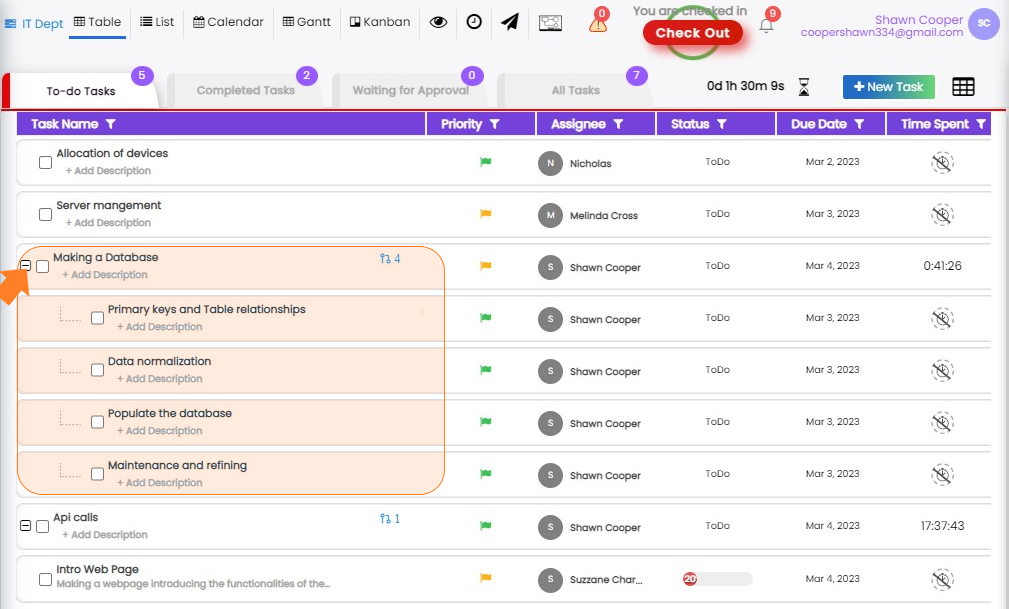
  2. If you click the + sign to the left of the task name, all of the subtasks will be displayed.

  3. When you click the subtask name you wish to edit, a new window containing editable subtask fields will open.

Alternatively, you can follow the given steps:
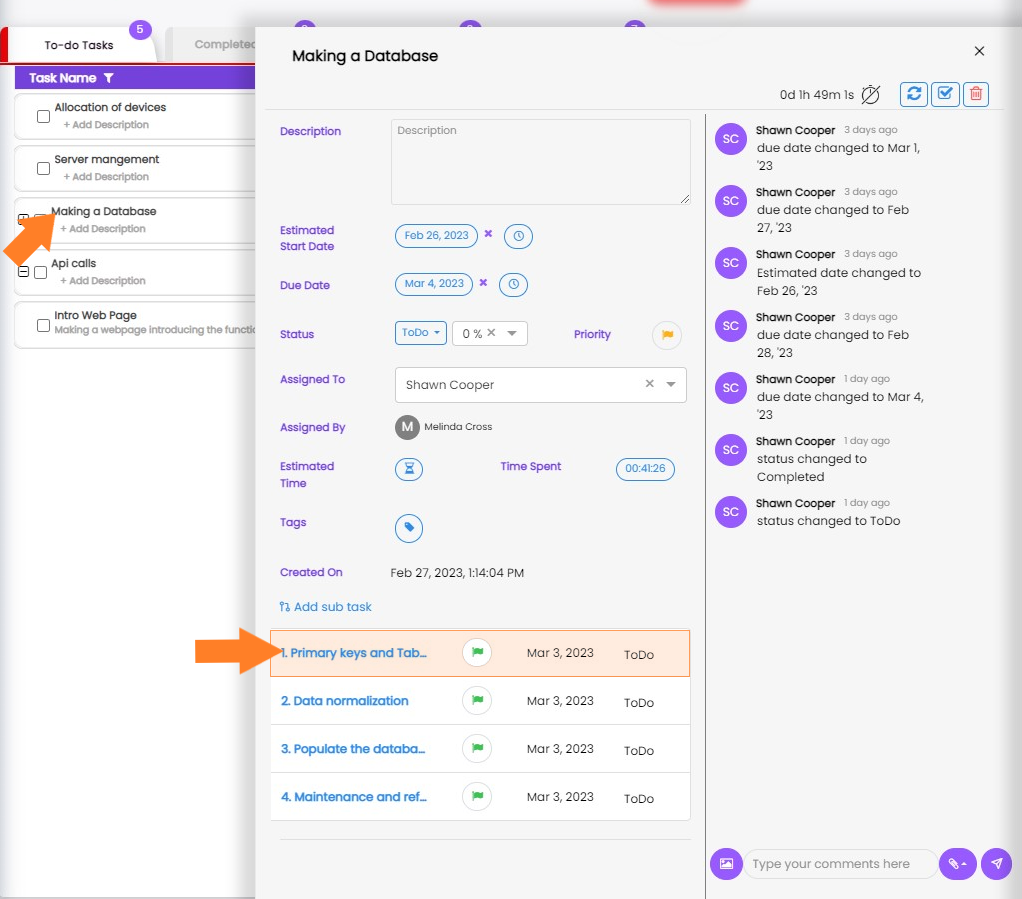
  1. In the given section, click on the task name containing the subtask.
  2. A window pane will appear on the right side of the screen. Scroll to the bottom in the left section of this window.
  3. In the 'Add subtask' section click on the sub-task name which you want to edit.

  4. A new window pop-up containing sub-task information will appear in which desired fields can be edited as shown in above image.

Task progress and Archiving a task

Tasks are automatically archived after completion and when status is changed to completed.

How to change progress and archive a task?
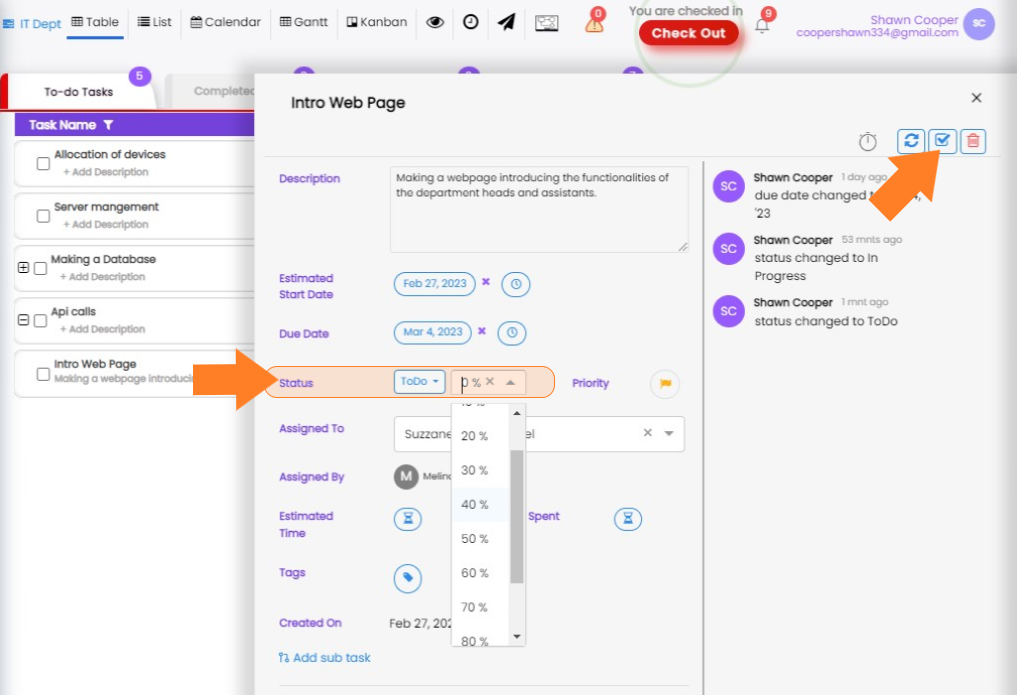
  1. Click on the task you want to change the status of.
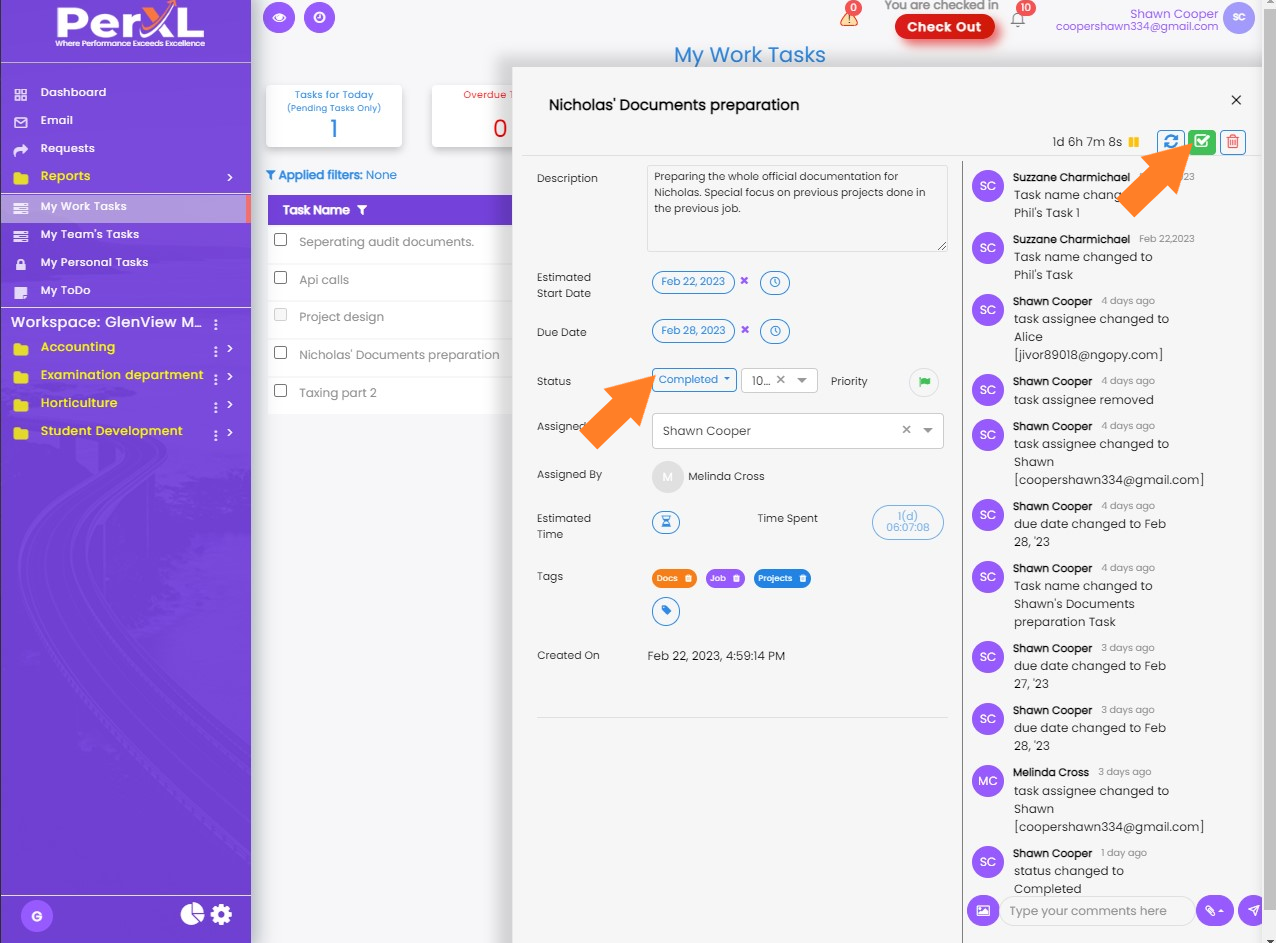
  2. In the window opened under the Status heading you can update task status matching its completion.
  3. When the task status is changed to completed then the task is archived.
  4. You can also click on the '✔' icon on the top of the task window to mark it as complete.

  5. Your task will be sent to your approver at Level 1 and 2.
  6. The task will be archived automatically after approval.

How to unarchive and view Archived tasks?
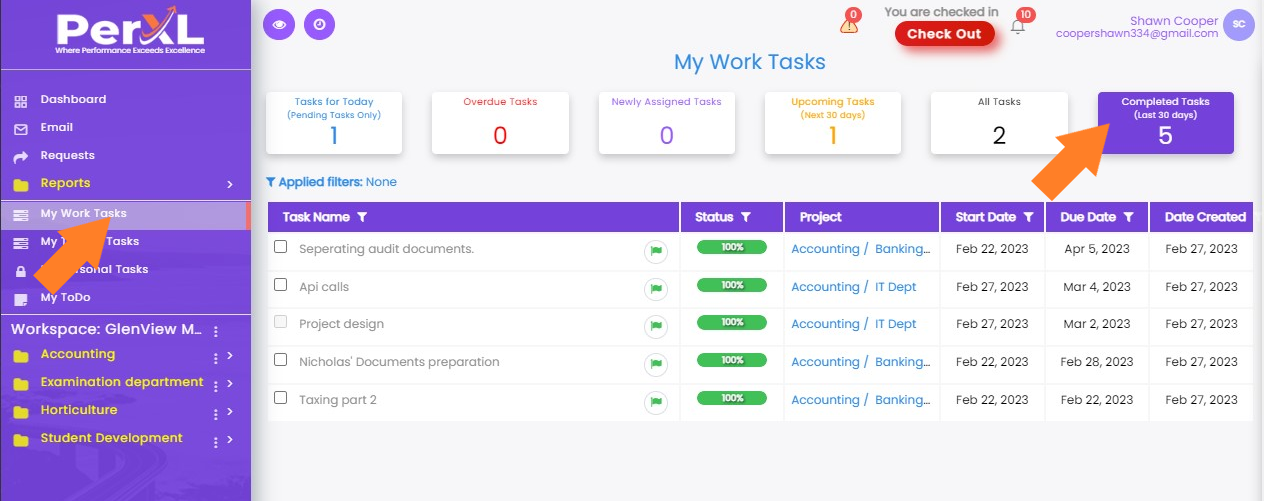
  1. Click on the 'My Work Tasks' tab in the sidebar menu.
  2. In the top right corner, you will find the 'Completed Tasks' tab. Click on it.

  3. You can see the list of all your archived tasks here. In order to view description, complete date, and other details click on the task name
  4. In the opened window you can click on the top of the '✔' icon again to unarchive it or you can click on status icon and change it from 'Completed' to InProgress.

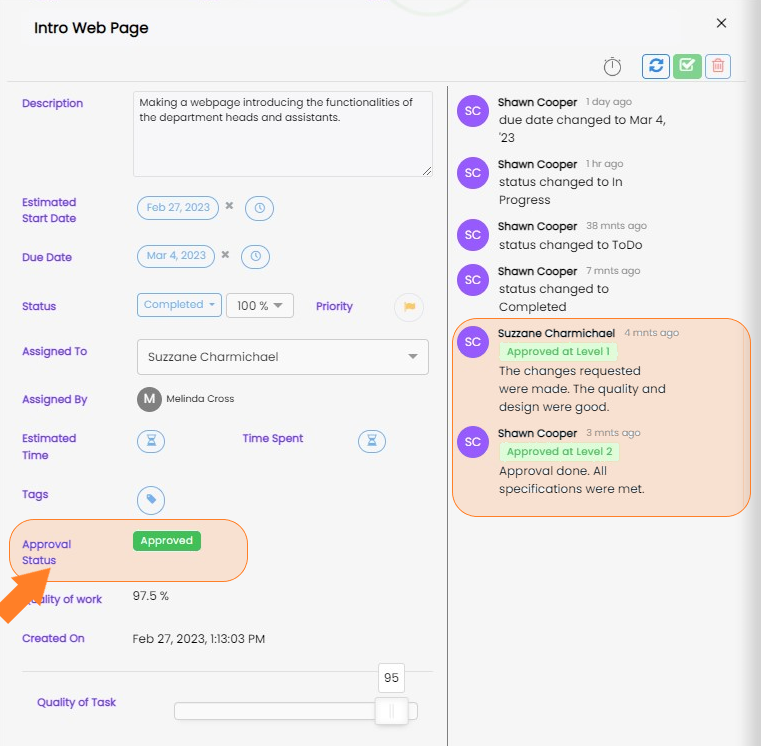
    The above given task can be unarchived as it did not require approval. However, the task below has been approved at both levels; thus, it cannot be unarchived.

How to Archive multiple tasks/subtasks?
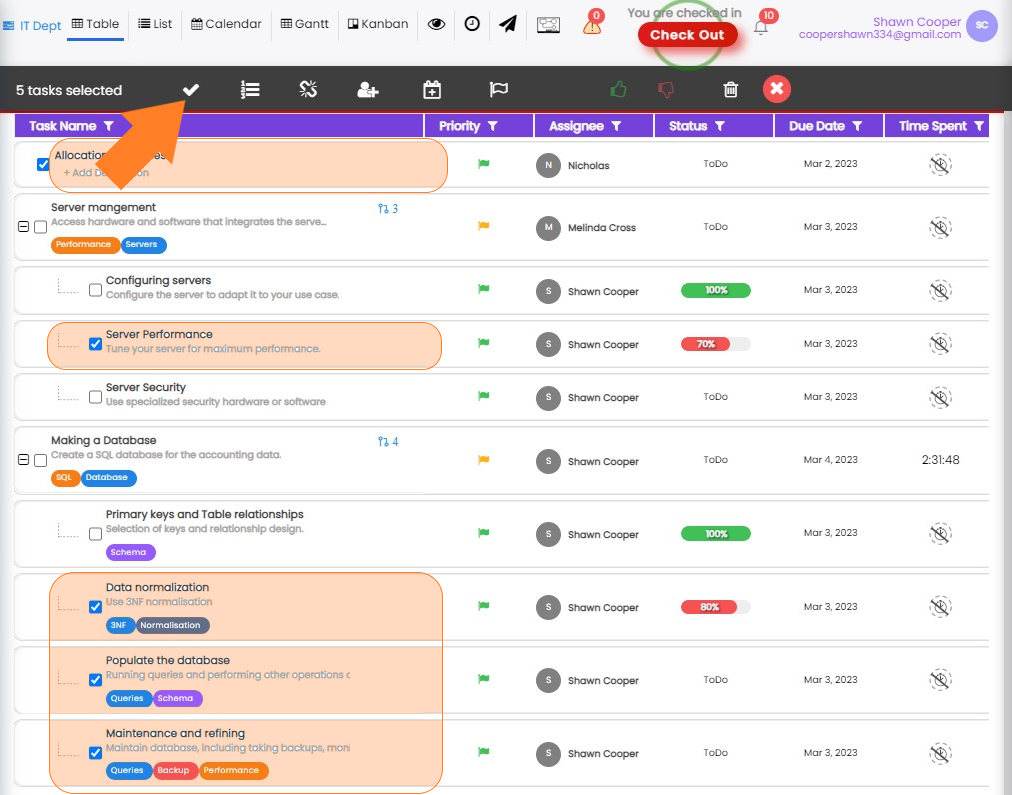
  1. Click on the checkboxes beside the task or subtask you want to archive.
  2. A pop-up will appear with options as below given image.

  3. Select 'Mark as Complete' when completed, it will archive the task.

Note: If you archive a task the subtasks under it will automatically be archived.

Note: If the task is given for approval then you cannot unarchive it or make any other status changes unless your approving manager rejects it.

Note: Also in case the task is approved you can view it but cannot unarchive or delete it.

Note: You can also click Flag icon being displayed in the pop-up menu to change the priority of multiple tasks at the same time.

Collaboration in tasks

Collaborations are a great way to improve teamwork since there might be more than one person for the same task and they might need to share ideas. Team can provide feedback, receive feedback, and provide appraisals to each other. Thus, the collaborations are also available at task level.

Who can make comments or send attachments?

The admin, account with manager privileges, and any other account to whom the task is assigned are able to interact with the collaboration section of the tasks.

How to use collaboration?
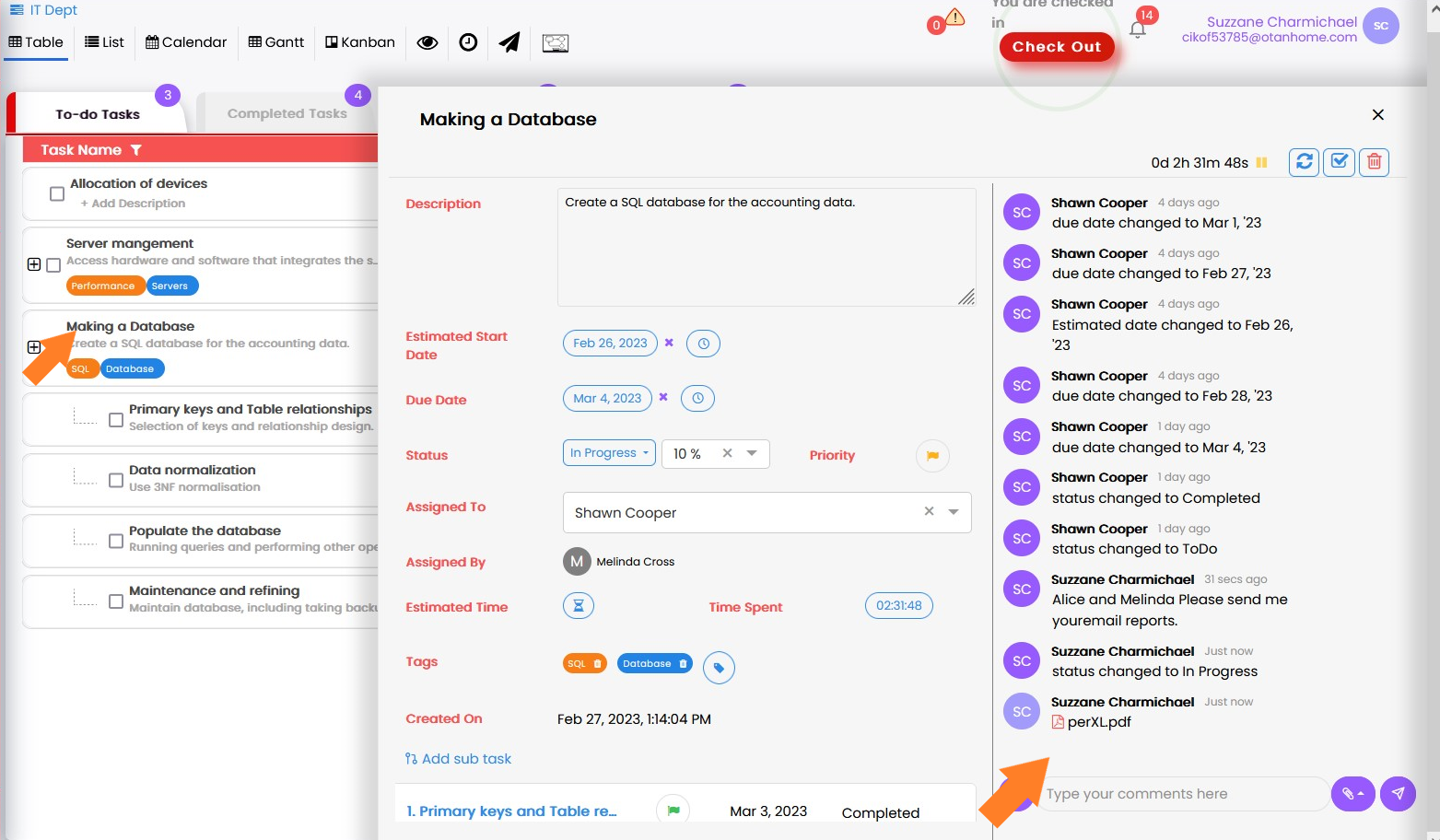
  1. Navigate to the required section and click on the task name to open task window.
  2. On the new window's right panel you can write comments, discuss the project, or provide any updates to your team.

  3. If you need to provide images, documents, links, or any files regarding the current task you can send them in the current window via clicking the attachment icon.

Note: To access collaborations in a subtask you just need to click on subtask name in the task window.

Deleting a task

Who can delete the task?

By default only the admin and an account with manager privileges can delete a task. But any account can delete a task that they have made themselves.

How to delete a task?

  1. If you are using kanban you can see the task name with the 'Bin' option to their right.

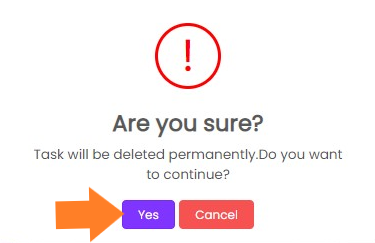
  2. Click on the bin icon and you will get a prompt asking for confirmation to delete the task.

  3. Click 'Yes' button and the task will be deleted.

Alternatively, you can follow the given steps:
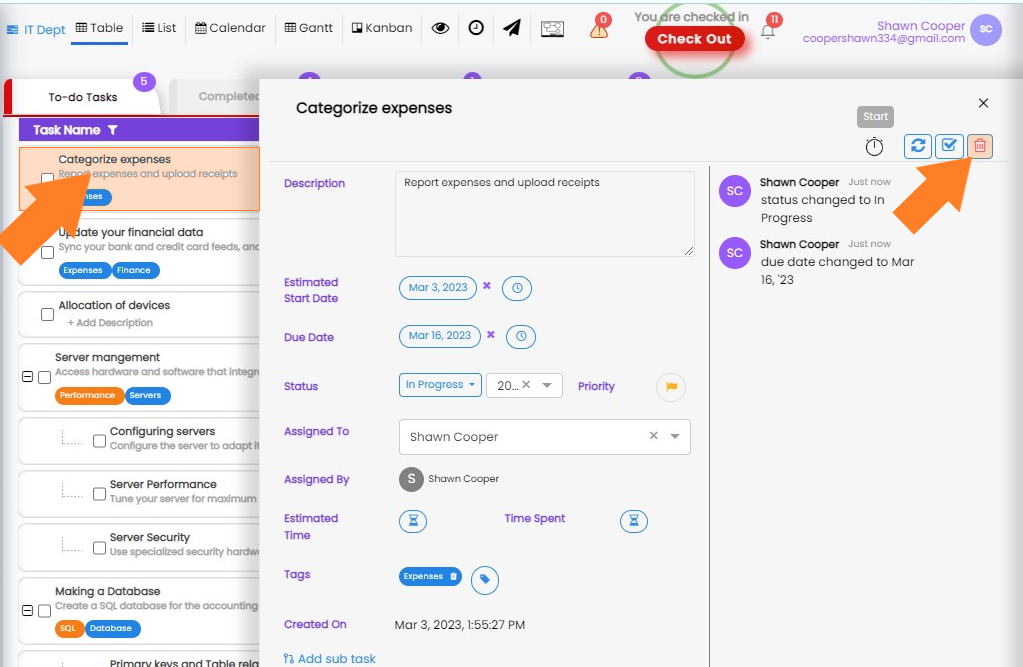
  1. You can also click on the task name to open the task window.

  2. Click on the 'bin' option in the top right corner of the task window and the task will be deleted after asking you for confirmation.

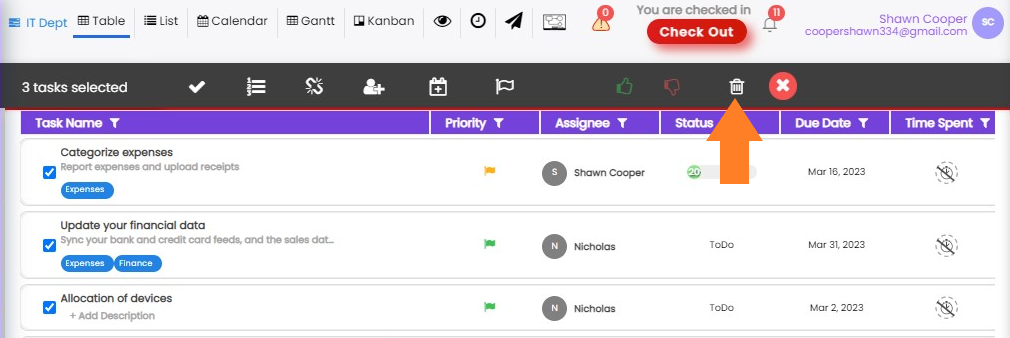
You can also select the checkboxes beside each task name and then select the bin icon in the pop-up menu that is being displayed at the top of the window.
Deleting a subtask

Who can delete the subtask?

  1. By default the permission lies with the manager, and the admin.
  2. If any other role then the Admin or Manager creates the subtask for their task then they can delete it.

How to delete the subtask?

The process of deleting a subtask is similar to that of a task deletion. Follow the given simple steps.

  1. Click on the task name to open the task window.
  2. Navigate to the sub-task section in the left panel of this window.
  3. Click on the subtask name which will open subtask window.
  4. You will see the "Bin" icon press it.
  5. Click Yes in the confirmation prompt and subtask will be deleted.

Alternatively, you can follow the direct approach:
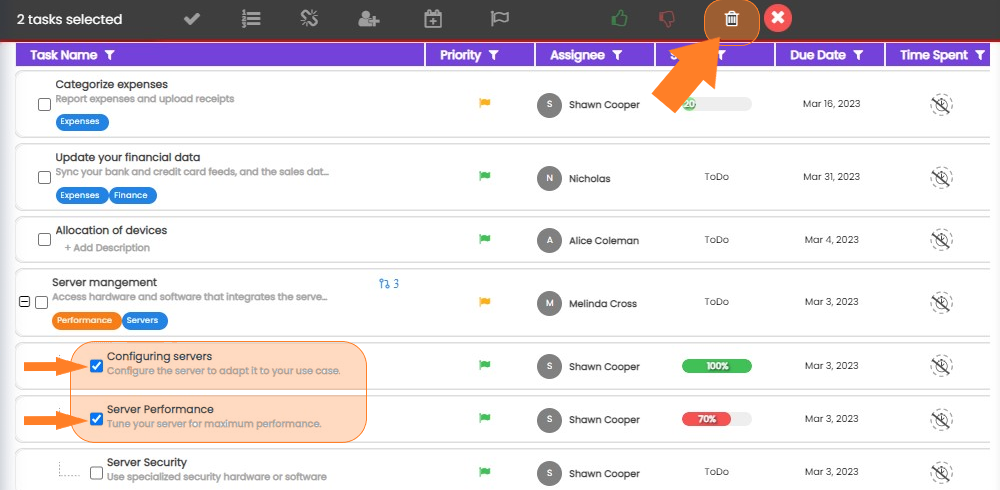
  1. Go to the task name which contains the subtask and click on the "+" icon beside it.
  2. You will see the name of all the subtasks.
  3. Select the checkboxes of subtasks you want to delete.

  4. In the top of the window you will get a menu containing bin icon. Click it and press Yes in the confirmation prompt.

Generate Subtasks Using AI

Who can Generate Subtasks Using AI?

Who can Generate Subtasks Using AI?

  1. Any user role with the required permissions to create and assign tasks can execute this. Administrators can configure custom roles with these permissions.
  2. Anyone can Generate Subtasks using AI in the current section if they have the access to view it.

Note: Please see the Settings section of PerXL hierarchy to find out more about who can Generate Subtasks using AI and who can edit or change task properties.

How to Generate Subtasks using AI?

  1. On your workspace in the sidebar menu select a Space and then click on it.
  2. Select the Section/Project name in which you want to create the sub-tasks using AI.

    Select Section

  3. Open the Task Details page of the task you want to divide.
  4. On the page, click the button.

    Generate Subtasks Button

  5. A new window will open displaying:
    • Task Name (as the header)
    • List of subtasks suggested by AI
    • Estimated time, due date, and assigned resource for each subtask

    AI Generated Subtasks Window

  6. Review the generated subtasks and click Proceed.
  7. An alert message will appear:

    Confirmation Alert

  8. By clicking Yes, save it!, the subtasks are created and linked under the main task.

Viewing AI-Generated Subtasks

Once saved, the AI-generated subtasks appear under the selected task. You can scroll down within the Task Details page to view all subtasks, along with their assigned resources, due dates, and time estimates.

View Subtasks

Generate Tasks From Requirement

Who can create a task from Requirements?

  1. Any user role with the required permissions to create and assign tasks can execute this. Administrators can configure custom roles with these permissions.
  2. Anyone can create a task from Requirements in the current section if they have the access to view it.

Note: Please see the Settings section of PerXL hierarchy to find out more about who can create a task from Requirements and who can edit or change task properties.

How to create Tasks from Requirement?

Steps to view the Application Usage of a resource

  1. On your workspace in the sidebar menu select a Space and then click on it.
  2. Select the Section/Project name in which you want to create the tasks from the requirement.
  3. On the top right corner of the window click on icon

    AI Task Description feature

  4. This would open Create Tasks From Requirement window in which you can add the Task

    AI Task Description feature

    • When you open the Create Tasks from Requirement window, you will go through 4 steps:
    • Step 1: Add Requirements
    • Step 2: Create Tasks
    • Step 3: Get Project Outputs
    • Step 4: Review & Save

Step 1: Add Requirements

Provide the following details:

  1. Requirement Description
  2. Technology
  3. Already Completed Work

AI Task Description feature

After filling in these fields, click the Submit button to proceed to the next step.

Step 2: Create Tasks

Based on your input, the AI will generate tasks and subtasks required to implement the project. In this step, you will see three action buttons:

  • Go Back – return to the requirements step
  • Generate Estimated Timeline – AI estimates completion time based on complexity
  • Get Resource Recommendation – AI recommends resources based on skillsets and past history

Step 3: Get Project Outputs

Depending on the option selected in Step 2, the interface will change:

  • If “Generate Estimated Timeline” is selected:
    - Select resources manually and provide a start date.

    - Click Get Due Date Estimation to see a result such as: “Based on the allocated resources and their skill sets, the project is estimated to be completed by Sep 11, 2025.”

    - Then click Assign Resources To Tasks to proceed to Review & Save.
  • If “Get Resource Recommendation” is selected:
    - Provide a start date and end date.

    - The AI will recommend resources and skill sets required.

    - You may add or remove resources manually.
    - Then click Assign Resources To Tasks to proceed to Review & Save.

Step 4: Review & Save

In this final step, you will see a summary of the generated tasks, including:

  • Task Name
  • Status
  • Start Date
  • Due Date
  • Assigned To
  • Time Estimate

You can make changes if needed. Finally, click Save Task to create your tasks from requirements.

Generate Task Description

Who can use AI Task Description?

  1. Task assignees and assigners can post comments.
  2. Users with appropriate permissions can upload files and media.
  3. Administrators can configure custom roles with access to comments.

Note: Please see the Settings section of PerXL hierarchy to find out more about permissions related to comments, file sharing, and AI suggestions.

How to generate Task Description using AI?

Steps to view the Application Usage of a resource

  1. On your workspace in the sidebar menu select a Space and then click on it.
  2. Select the Section/Project name in which you want to describe the task

    AI Task Description feature

  3. Open the Task Details page where a task has been created with no description

    AI Task Description feature

  4. By clicking the AI Task Description icon.
  5. Review the suggested description. You can edit the content if needed to better match your requirements.

    AI Task Description feature

Auto Assign Tasks

Who can create a Auto Assign Task?

  1. Any user role with the required permissions to create and assign tasks can execute this. Administrators can configure custom roles with these permissions.
  2. Any user with permission to view the current section can use the “Auto Assign” feature.

Note: Please see the Settings section of PerXL hierarchy to find out more about who can assign a task and who can edit or change task properties.

How to create a Auto Assign Task?

Steps to view the Application Usage of a resource

  1. On your workspace in the sidebar menu select a Space and then click on it.
  2. Select the Section/Project name in which you want to describe the task
  3. On the top right corner of the window click on icon

    AI Task Description feature

  4. This would open Choose tasks and resources to be assigned window. This window displays a list of available tasks.

    AI Task Description feature

  5. Select one or more tasks from the list and click Next to proceed.

    AI Task Description feature

  6. On the next screen, choose the resources you want to assign to the selected task(s). AI will suggest resources based on their skills, workload, and past task history.

    AI Task Description feature

Finalizing Assignment

After selecting the appropriate resources, click on the Assign Tasks button. The system will automatically allocate the selected tasks to the chosen resources. Once saved, you can view the assignments in the Task Details page under the “Assigned To” section.

Task Comments

Who can use the Comments Area?

  1. Task assignees and assigners can post comments.
  2. Users with appropriate permissions can upload files and media.
  3. Administrators can configure custom roles with access to comments.

Note: Please see the Settings section of PerXL hierarchy to find out more about permissions related to comments, file sharing, and AI suggestions.

How to post comments and updates?

  1. On your workspace in the sidebar menu select a Space and then click on it.
  2. Select the Section/Project name in which you want to describe the task

    AI Task Description feature

  3. Open the Task Details page where you want to post updates or share files.

    AI Task Description feature

  4. On the right side of the Task Details page, locate the Comments Area

    AI Task Description feature

  5. Type your message in the text area providedTo attach a file, click the Attach button and choose from the following options:
    1. Local File
    2. Google Drive
    3. Drop Box
  6. Click the Send button to post your comment.

Features of the Comments Area

  1. Message List – View all comments with sender and timestamp.
  2. Gallery Button – Access all previously shared media files.
  3. Text Area – Write updates and task progress notes.
  4. Attach Button – Upload files from Local, Google Drive, or Dropbox.
  5. Send Button – Post your message and attachments instantly.

Using AI Suggestions in Comments

The Comments Area integrates AI assistance for better communication. When typing your comment:

comment features

  • Click the icon.
  • it will rewrite the sentence so that it has:
    • Correct Grammar
    • Rewrite Professionally

AI Reply Suggestions:
In addition to editing assistance, the system now provides AI-powered reply suggestions. When a message is received, the system automatically generates a list of smart reply options for the recipient.

  • The recipient will see multiple AI-suggested replies directly below the message.
  • They can select one of the suggestions, edit it if necessary, and send it as a response.
  • This feature improves efficiency and ensures quick, context-aware communication.

comment features