PerXL Settings
In this article
Settings are an important feature of any product as it allows users to personalize their experience and improve the usability and functionality of the product.
Users of PerXL can alter the product to suit their needs and preferences. We enable many fields to be customised in order to improve the overall user experience by giving people greater control over the product.
Who can add and remove Designations?
Only Admin accounts and accounts with manager roles have these privileges.
How may a designation be added, edited, or removed?
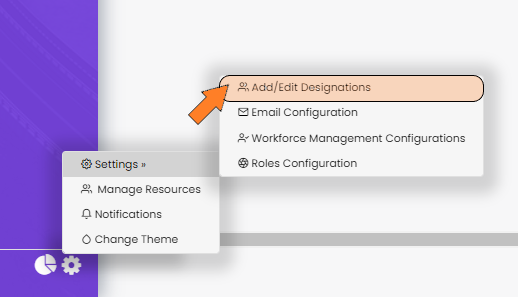
- In the sidebar window's bottom, click the settings icon.
- Choose "Add/Edit Configurations" from the menu.
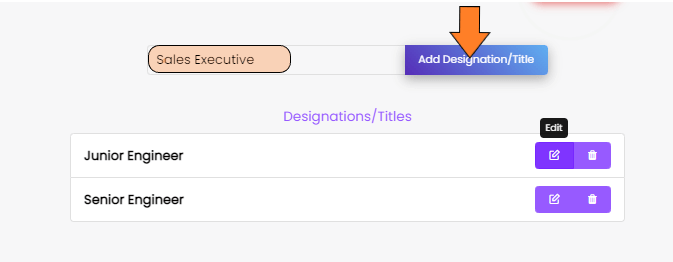
- On the Add Designation/Title tab of the new window, enter the name of the designation you wish to add.
- To create a title, select Add Designation/Title.
- You may alter the title or designation by clicking the edit button just next to the Title name.
- You can click the "bin" icon next to the tile name to permanently erase the title.
Organizational Settings
- In the sidebar window's bottom, click the settings icon.
- Choose "Organization Settings" from the menu.
-
This section is for organization-level management. It allows administrators to configure integrations and operational rules. From this page, you can manage AI Authentication, define Performance Evaluation criteria, and set global Work Schedules.

-
In Performance Evaluation tab, we keep frequency, Minimum score threshold etc.

-
In Work Schedule tab, User can choose default timezone, Min requierd productive hours etc.


Email Configuration
You can set up PerXL to configure your email so that updates don't require you to move tabs. Emails can also be used as conventional email applications, and you can build tasks from emails and keep track of them.
You can take a look at the Setting up Email section where we already went into great length about this.
WorkForce Management Configurations
Workforce Management is an integrated set of processes that you use to optimize the productivity of your employees. By choosing from the various workforce setting configurations, you can easily increase productivity of your teams and ensure that employees remain on task without expensive human oversight.
Who can Enable/Disable these permissions?
- The admin team and the accounts with valid privileges related to Resource Configuration can both accomplish this.
- If you have used the manager account, permissions are submitted to the admin for approval, and the admin can only grant if it is functioning at the organisational level.
Note: Only the settings that have been enabled at the organisational level by the software's owner can be enabled or disabled by the manager and admin accounts.
How to Enable/Disable permissions?
By following the instructions, you can access the Settings page for Workforce management.
- Locate the Settings icon in the sidebar's bottom section and click on it.
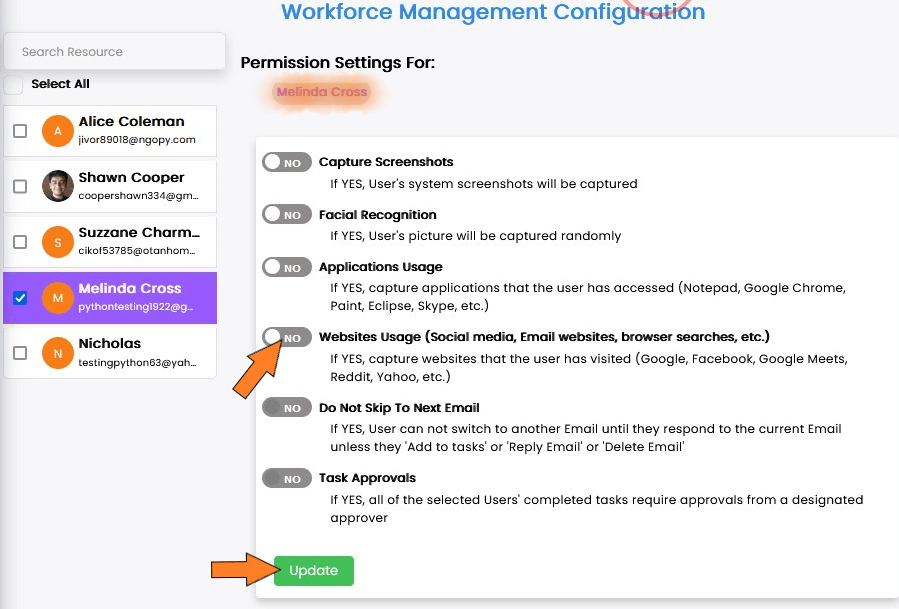
- The Workforce Management Configuration icon should be clicked.
- A new page listing all of the organization's members and the permission settings will open.
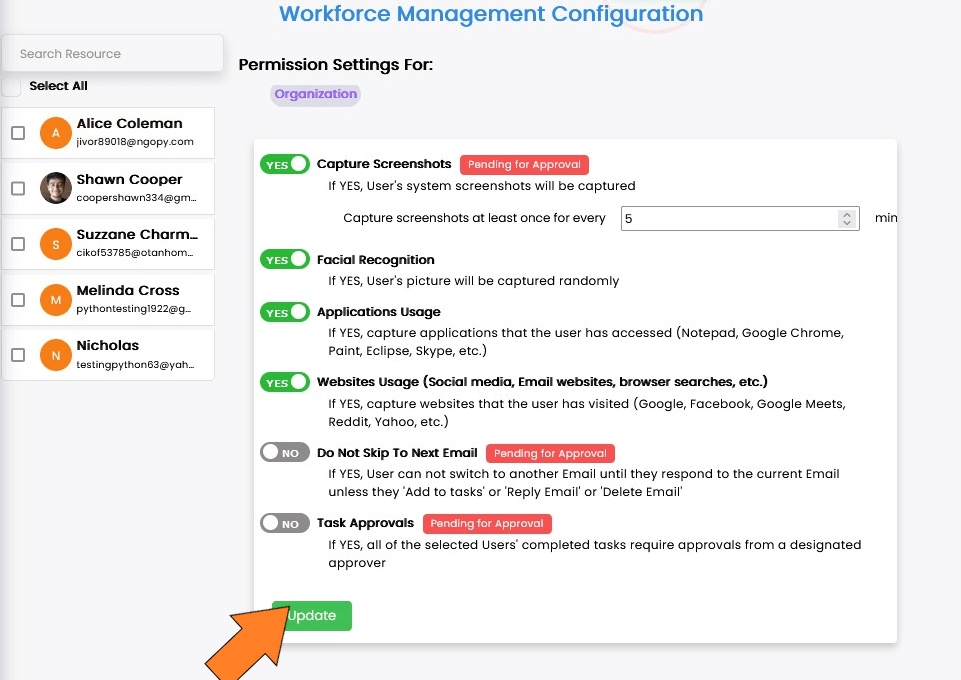
- By selecting the radio buttons next to the permissions you want to use, you can then click the update button.
- You can choose a specific resource to modify their permission settings, or you can choose all resources to make changes that apply to every resource.
- If you don't choose a resource, all changes will be done at the organisational level, and the same name will be displayed at the top.
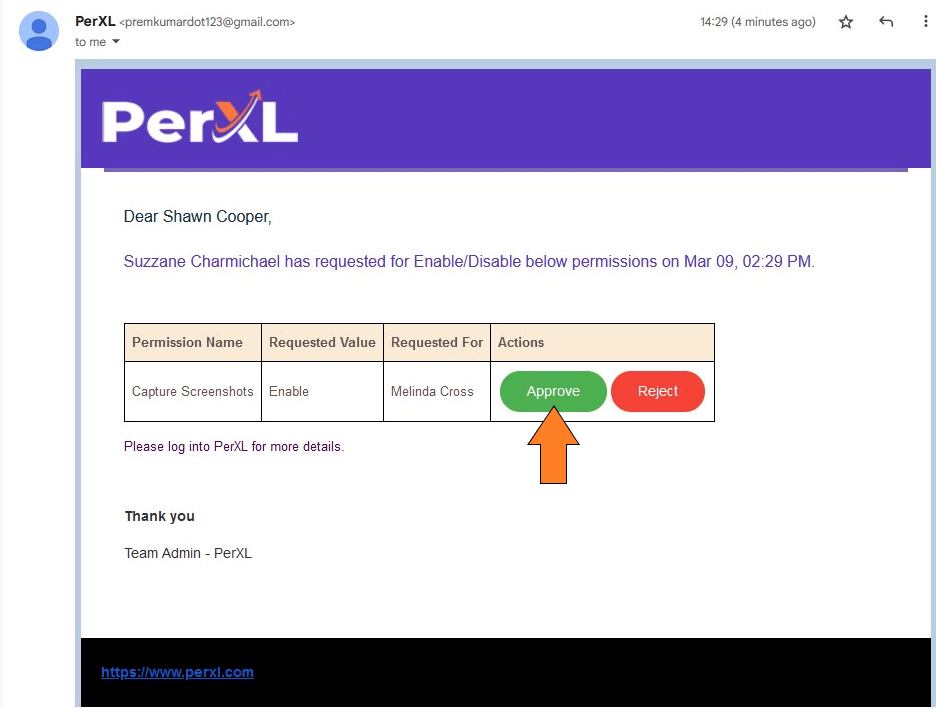
- The admin account will receive an email notification that can be approved or rejected if the manager has requested approval.
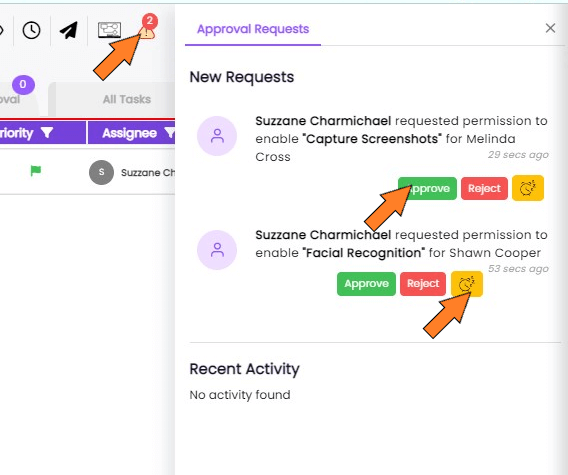
- You can click on the Warning triangle icon at the top of the page to approve, reject or snooze these permission requests.

Roles configuration
Every account made on PerXL comes with a specified role that contains a number of permissions. Admin, Guest, Manager, Member, and Customer. Their characteristics and permissions can be modified to meet the needs. All of the permissions are defined by the three headers:
- Can view
- Can Create and Delete
- Can edit
Who can change role configurations?
By default only the Admin is allowed to approve the changes in permissions.
Adding a custom role
In addition to the provided basic roles, you can create a custom role based on your needs. Follow the directions provided to do so:
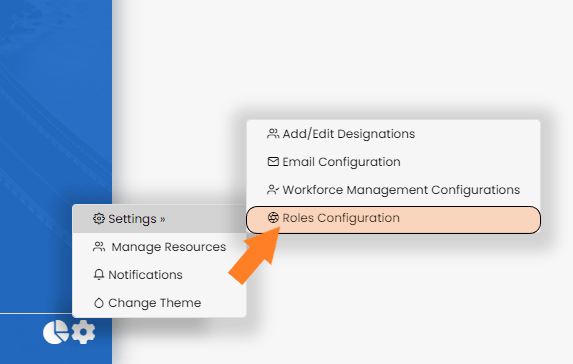
- Locate the Settings icon in the sidebar's bottom section.
- Choose the icon for Roles Configuration.
- A new page providing all the permissions for a certain role will emerge.
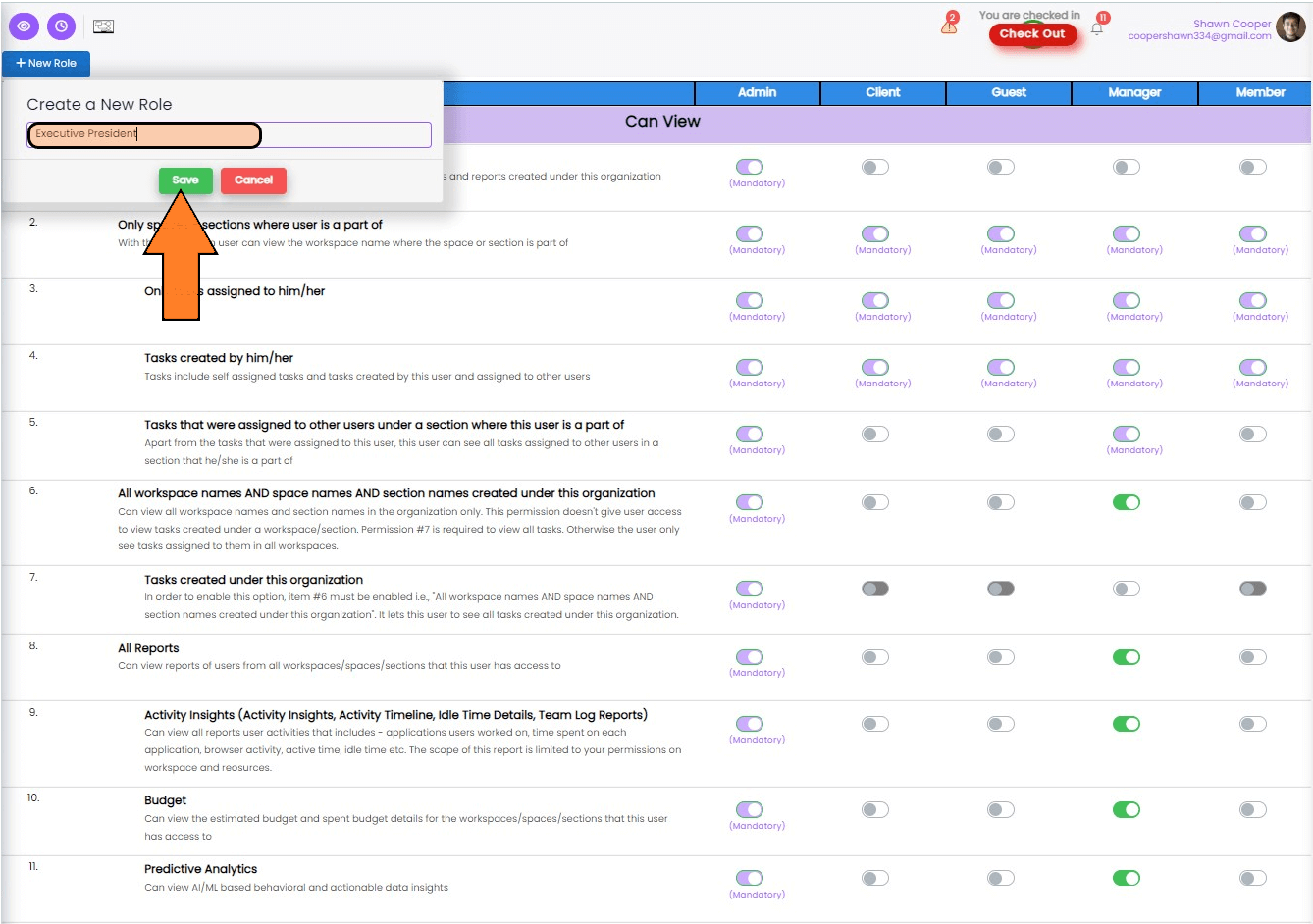
- Click the +New Role icon located in the top left corner of the screen.
- Type the new role's name in and hit save.
- A new role with the given name and default permissions will be created.
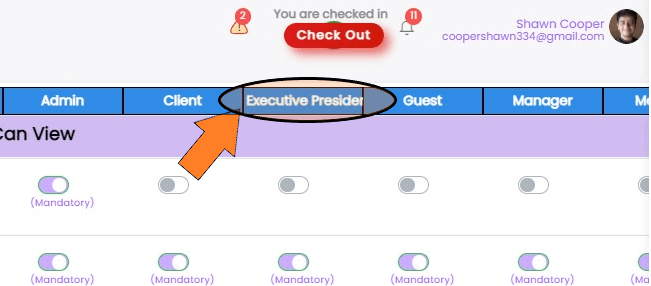
Note: The newly generated role has the same standard permissions as a member, client or a guest role.
Modifying a role
You can alter a custom role after you've created it, or you can apply the guidelines below to give default roles any unique permissions.
- Navigate to the Settings icon at the bottom of the sidebar menu.
- Click on the Roles Configuration icon.
- A new page providing all the permissions for a certain role will emerge.
- Find the role for which you want to add or remove permissions and click on it.
- To grant any specific permission to a specific position, tick the radio button next to the permission after reading its description.
- You can also edit its name or delete it according to your choice.
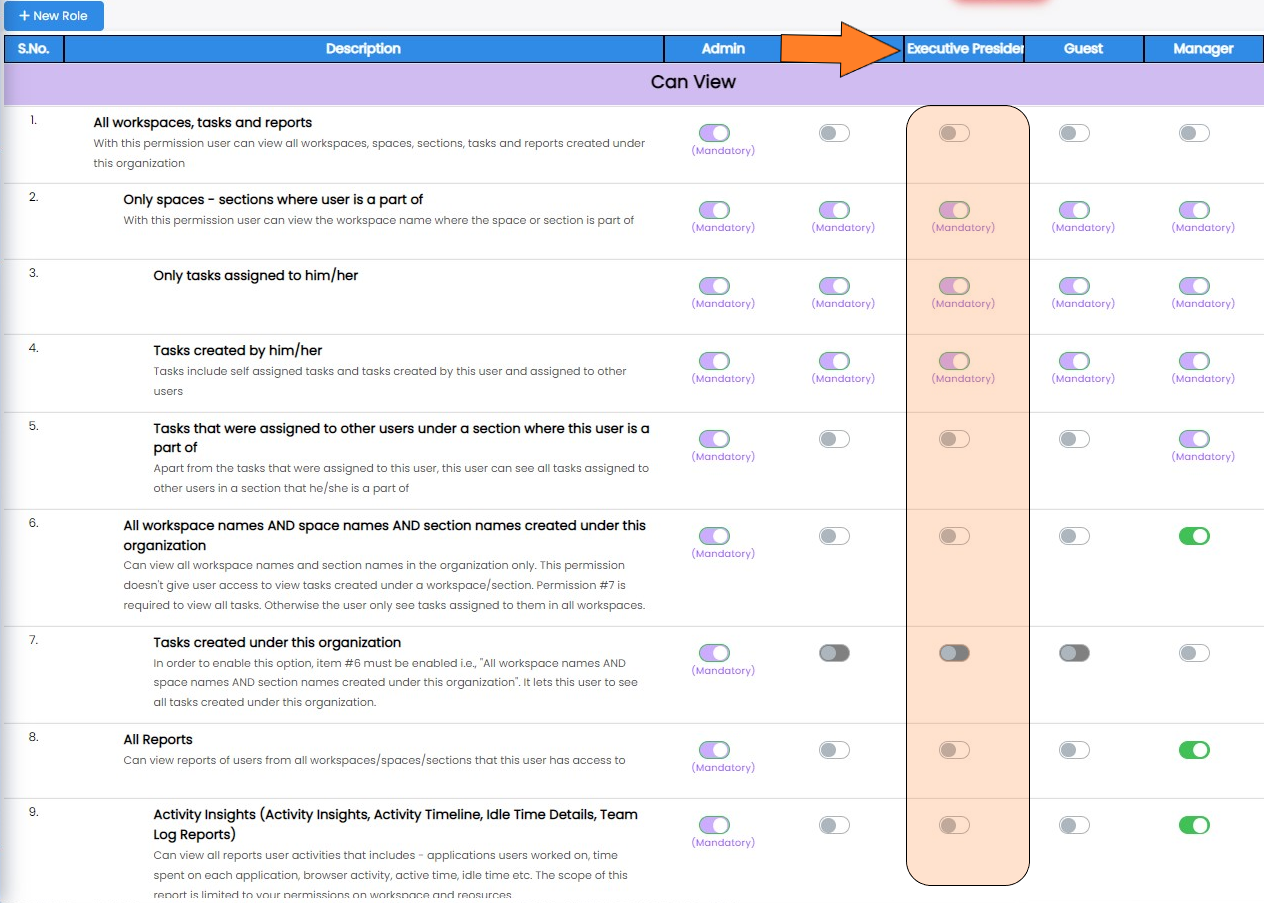
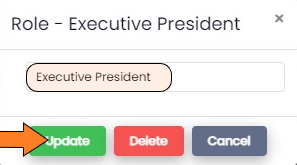
Note: You can add or remove permissions for each user role using the more than 50 subheadings on this page. It's crucial to proceed with extreme caution when denying admin access because doing so could result in the role admin's privileges being locked.
Manage Resources
Decentralizing the administration of human resources via selecting resource managers is another key duty. You might need to review the activity logs, choose and assign hourly rates to a resource, consider their experience, and perhaps rate their skills for future use.
Who can Manage resources?
Only accounts with the Admin role have the ability to manage resources by default.
How to assign reporting managers?
- Click the Settings button in the sidebar menu's bottom.
- Choose the option Manage Resources for managing resources.
- A fresh page with all the resources will show up.
- Decide which resources you want to assign reporting managers to by selecting checkboxes beside their names.
- Choose a resource by clicking on the +Assign reporting Managers icon.
- To save changes, press the Assign button to save changes.
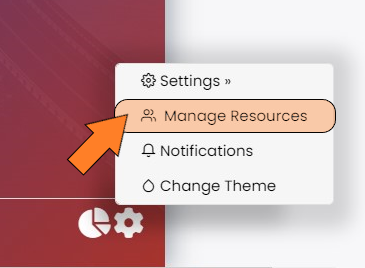
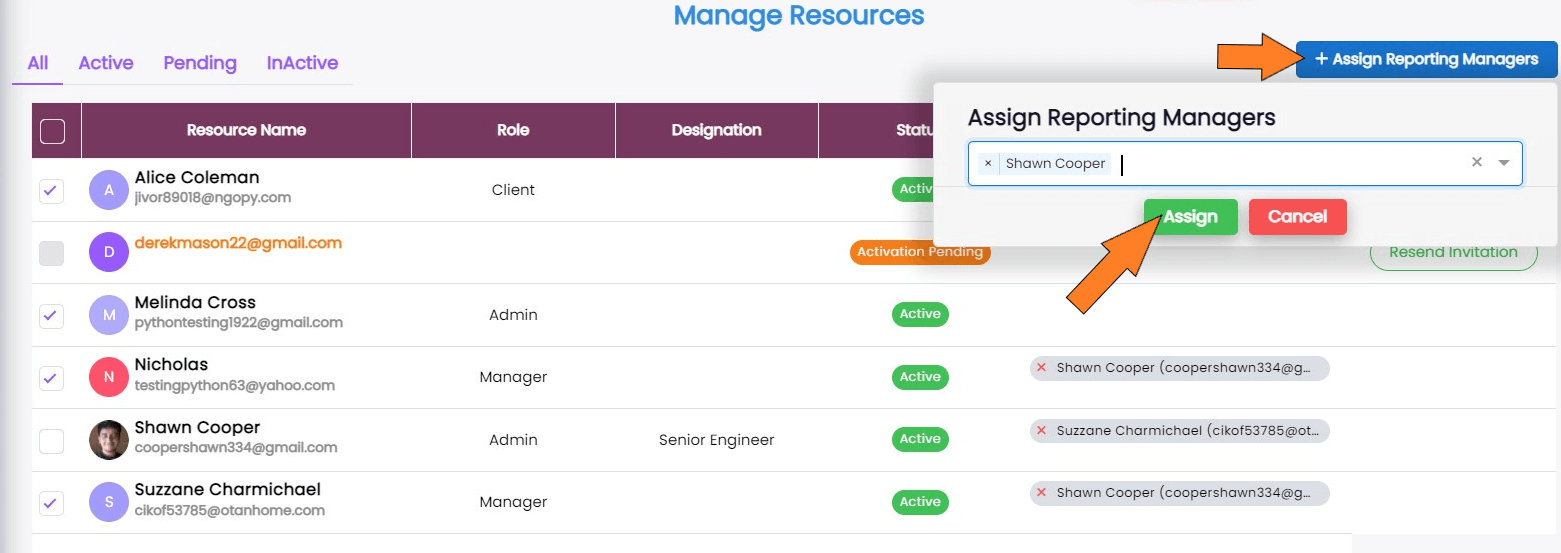
Note: You can choose more than one reporting manager
How to edit resource profiles?
To access the "Manage resource" setting, simply repeat the steps as followed above. Following that, you can adhere to the guidelines listed below.
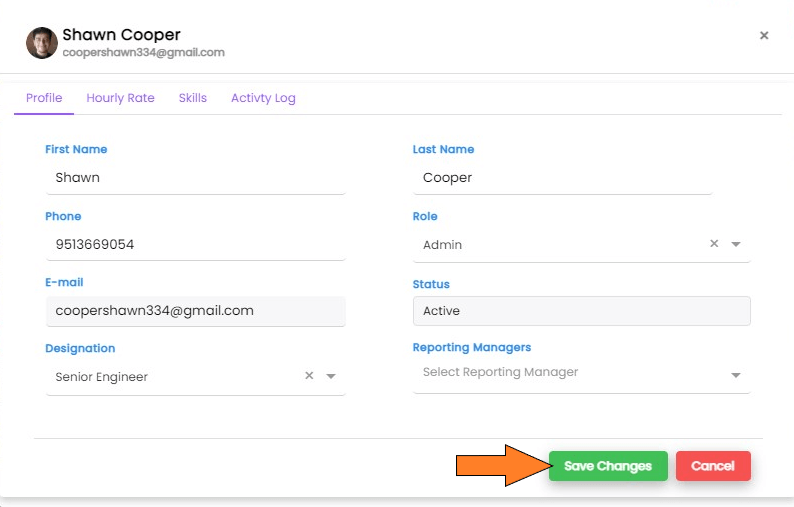
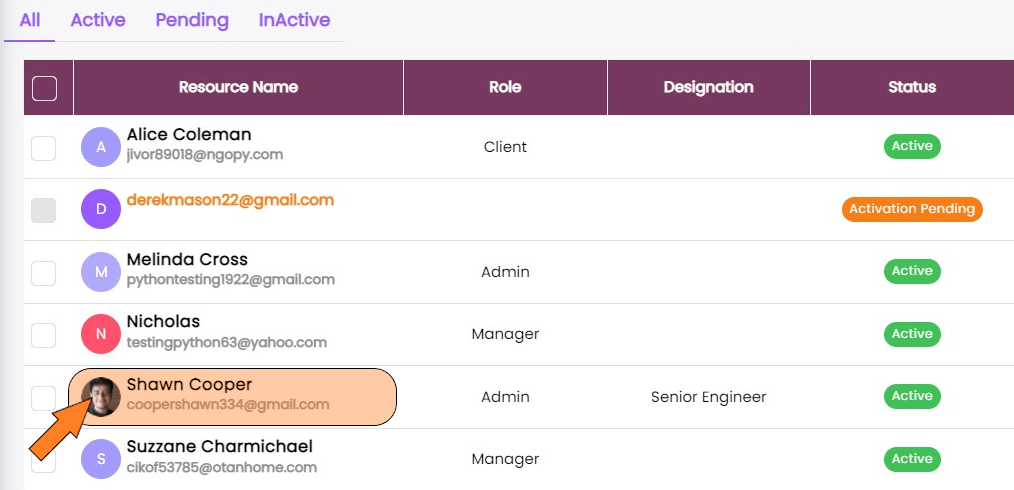
- Instead of using many resources, choose the icon for a particular resource.
- You'll be taken to a new window that contains all of the resource's details.
- The "Profile" section is open by default; here, you can modify the status, reporting manager, phone number etc of the resource.
- Then to make changes permanent, click on Save changes button.
How to assign hourly rates for the resource?
- Go to the Settings icon in the sidebar menu.
- You should click the icon for Manage Resources. There will be a new page with all the resources on it.
- Choose an icon for a particular resource.
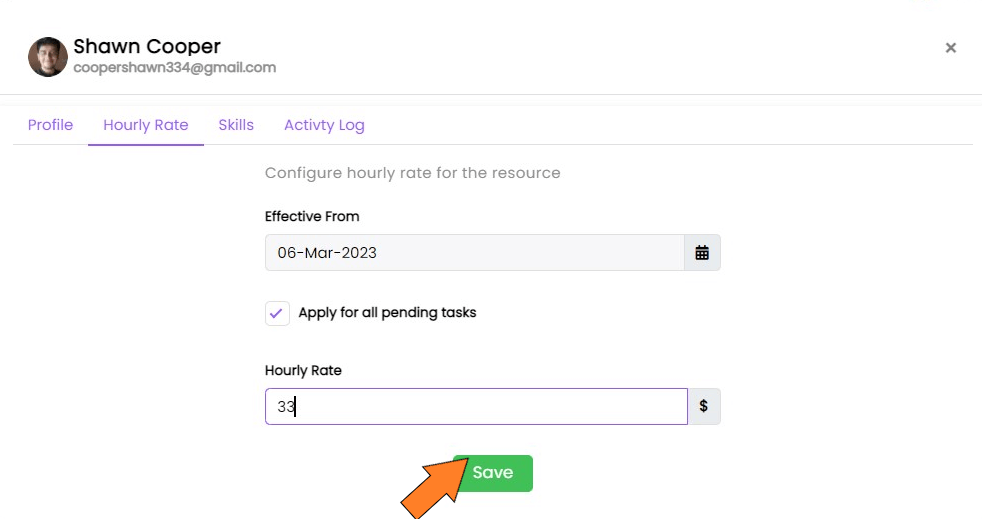
- A new window with all of the resource's details will open. Set the Hourly rate amount by selecting Hourly rate from this.
- To update information regarding this, click the Save button.
Checking activity logs and Skills
- Go to the Settings icon in the sidebar menu.
- You should click the icon for Manage Resources. There will be a new page with all the resources on it as done above.
- Choose an icon for a particular resource.
- A new window with all of the resource's details will open.
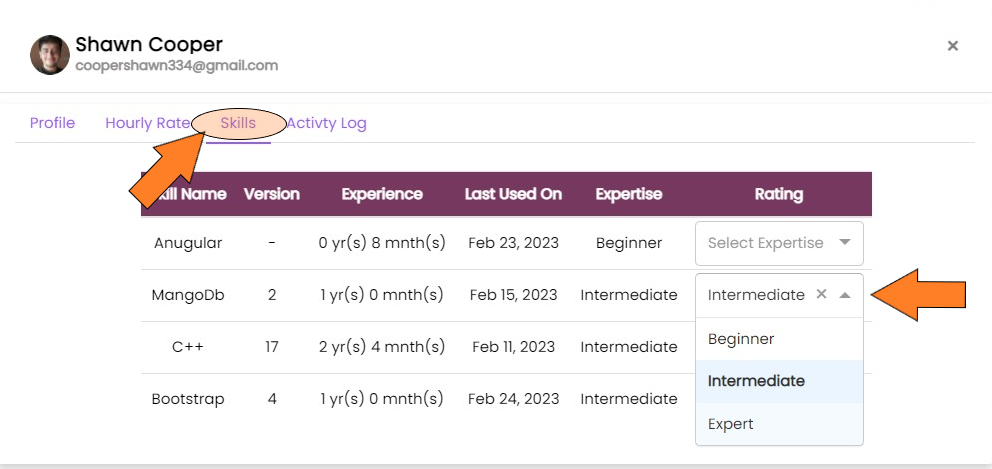
- On the new window, click on Skills to view skills of a particular user. You can also add the approval rating for their skills.
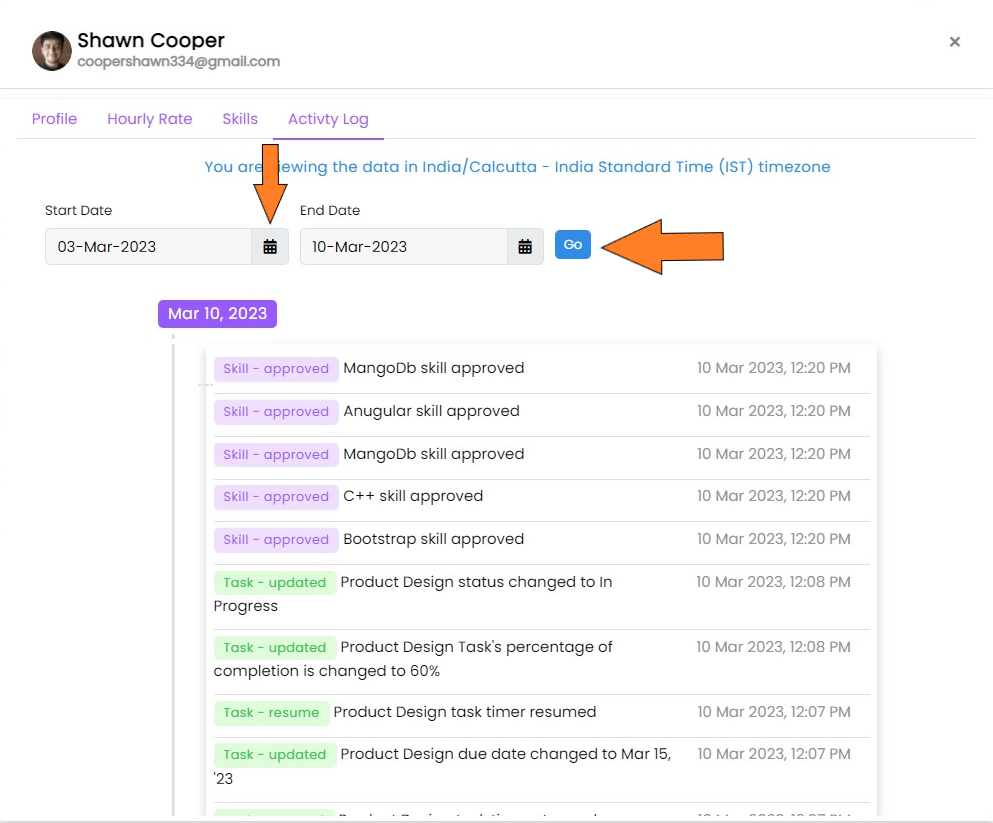
- Click on the Activity log at the window top to check their activities after selecting the timeframe.
- Here in this window you can select Go button after choosing the timeframe.
Notification Settings
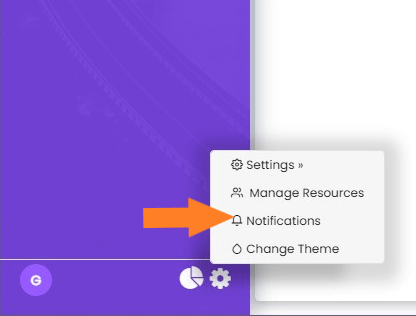
- Click on Settings icon at the bottom of the sidebar menu.
- Select Notification icon.
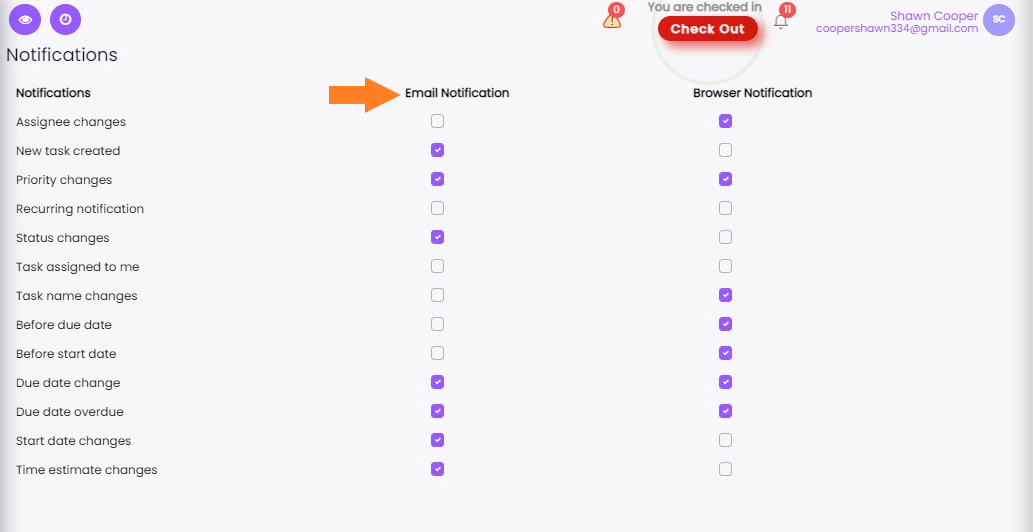
- Choose the checkboxes next to the notifications for which you want to receive email or browser notifications on the newly formed window.
Modifying the Theme
You have complete control over the appearance of your PerXL window. Anybody with a PerXL account can use this modification. To change theme please follow the given steps.
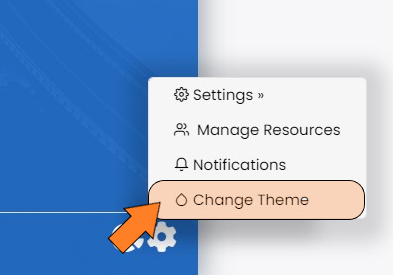
- Go to the Settings icon at the bottom of the sidebar.
- You should click the icon for Change Theme.
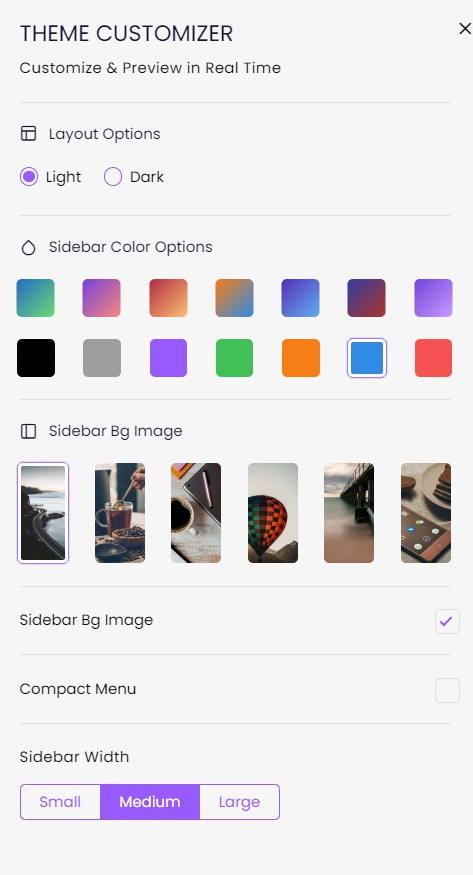
- Theme Customizer will show up as a side panel.
- Choose the attributes, then alter the interface as desired.
- Click on the Cross button at this panel's top and the changes will be applied automatically.