Pre-Built Demos

SaaSio comes with a beautiful collection of modern, easily importable, and highly customizable demo layouts.

SaaSio Main
Online Payment
Digital Agency 2023
Digital Marketing 2023
NFT 2023
SaaS 2023
IT Solution 2023
Help Desk
IT solution 2023 (V.2)
Law Firm
Cryto Currency
SaaSio NFT
SaaS Classic
SaaS Modern
Digital Agency
Marketing Agency
Digital Marketing
App Landing
Digital Agency 2
Business Consult-4
Personal Portfolio
Creative Studio
IT Solutions-3
Business & Finance
Digital Agency
Business Consulting
Digital Agency
Finance Consulting
Marketing
Gym Fitness
Education
Travel Agency
It solution-2
Business Consult-1
Business Consult-2
Business Consult-3
HR Management
CR Management
Social Media Marketing
Software Management
Cyber Security
Email Marketing
Web Application
SEO Agency
Resturannt
IT Solutions-1
Digital SEO
Startup Agency
Dark Version Demo
SaaSio Main (Dark)
Dark Version Demo
SaaS Classic (Dark)
Dark Version Demo
Digital Agency (Dark)
Dark Version Demo
StartUp Agency (Dark)
Dark Version Demo
HR Management (Dark)
Dark Version Demo
SMM (Dark)
RTL Version Demo
SMM (RTL)
RTL Version Demo
Digital Agency (RTL)
RTL Version Demo
SaaSio Main (RTL)
RTL Version Demo
HR Management (RTL)
RTL Version Demo
CR Management(RTL)
Sign In Get started

PerXL Resource Insights

With the use of "Predictive analysis," resource insights can assist you in real-time meaningful planning and management insights for your resources. You may use these insights to improve the data-driven decisions you make and the business outcomes you achieve

Prerequisites to view Resource Insights

ou need to meet certain conditions before you can view "Resource Insights" section, they are given below.

  1. The user must have selected the workforce management option in the plan.
  2. PerXL client programme (user agent) software must be installed on the user's computer.
  3. User must checked-in to the application
Team's Real-Time Insights

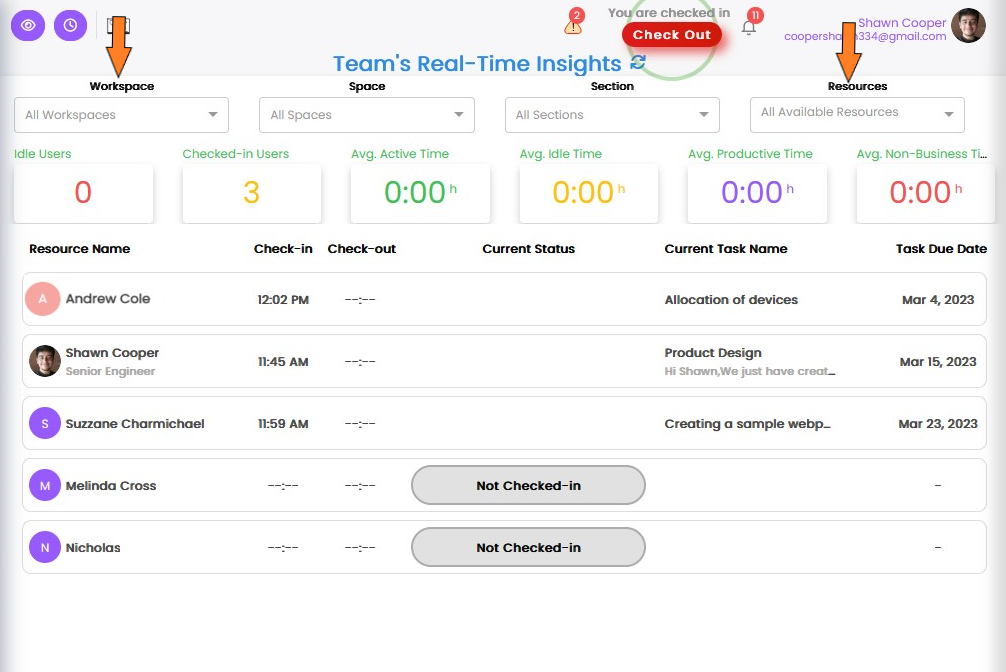
You may acquire the most recent information about the team's performance and activities by using Team's real-time insights. This would provide the resource's present status, whether it is checked in or not, the tasks that are being worked on right now, productivity levels, etc.

More resource reviews can be done to take corrective action, such as allocating workloads differently or adding extra resources.

How to view Team's real time insights?

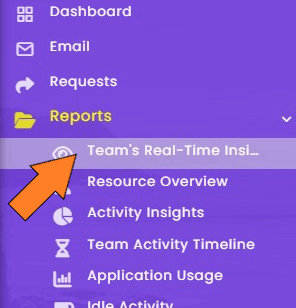
  1. Click on the Reports icon in the sidebar menu.
  2. A drop-down menu will then show up.
  3. Choose the "Team's Real-Time Insights" section from the drop-down menu.

    AI Task Description feature

  4. A new window will appear. From the provided dialogue boxes at the top, choose the workspace, space, section, and resource name

    AI Task Description feature

    The window will update to display the most recent information for the chosen selections.

    Note: You can view the resource overview by clicking on any of the above resource user profile names.

Activity Insights

A workspace, space, or section's activity is summarised in the activity insight section.

How to view Activity insights?

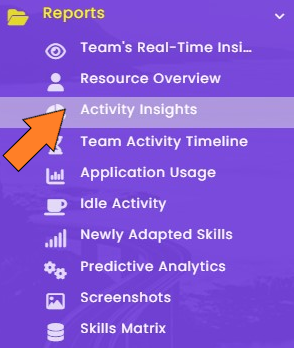
  1. Choose the icon for reports from the sidebar menu. A drop-down menu will show up.

    AI Task Description feature

  2. From the menu, choose Activity insights icon.
  3. A new page will open in which you need to fill the fields like Workspace name, Timeframe, etc. for the data you need to view.

    AI Task Description feature

  4. This page opened allows you to view activity insights for your selected options.
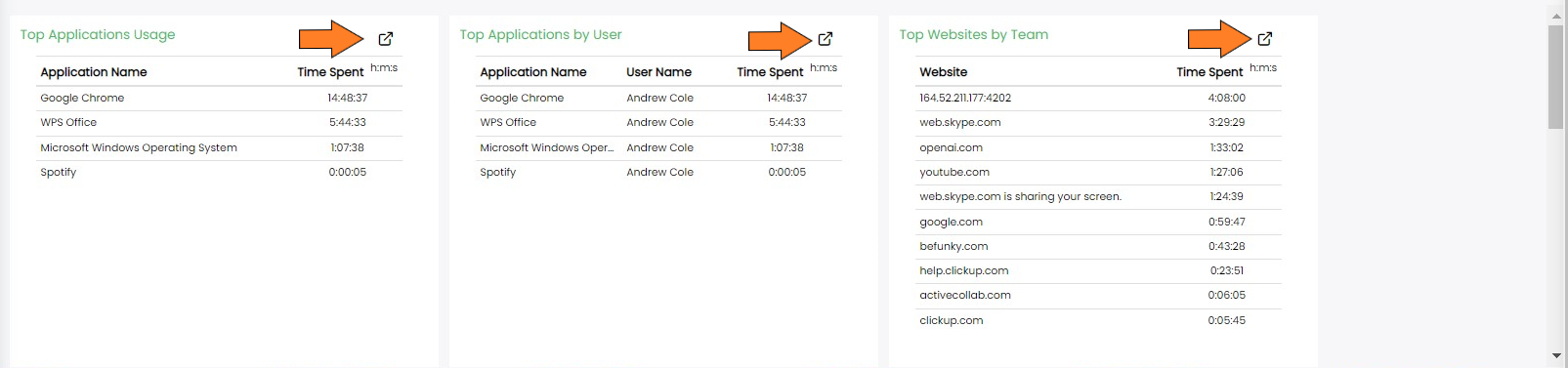
  5. You can also check:
    1. Top Application Usage.
    2. Top Application by user
    3. Top Websites by team.
    4. Top website by user
    5. Checked in user
    6. Top Idle users
    7. Active/Idle working per hour
    8. Current idle users

    AI Task Description feature

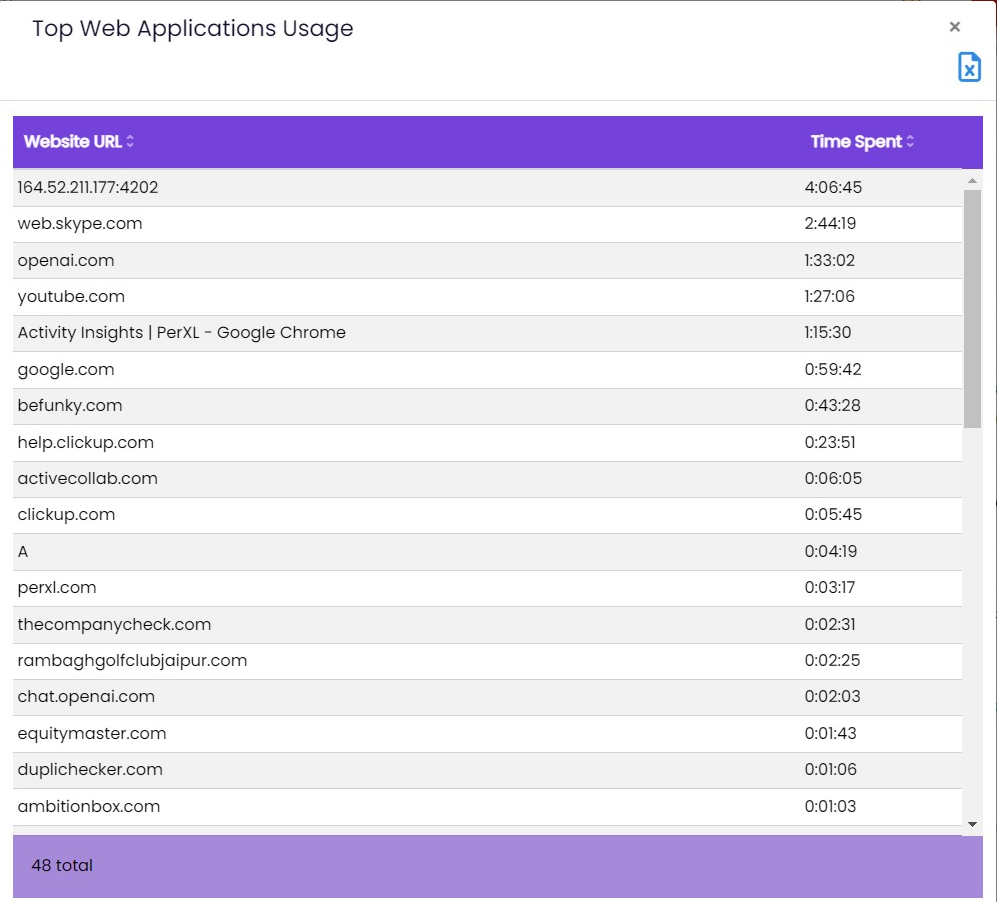
    Note: The icons in each of the aforementioned sections can be clicked to view the whole list of the data. By clicking on the Excel icon the same information is also available there in excel format for download

    AI Task Description feature

Predictive analytics

Predictive analytics frequently based on historical data, including performance in the past, absenteeism, idle time, active time, and other relevant measures.

These insights can be used to spot behavioural trends and patterns in the workforce that might have an effect on how an organisation conducts business. When resources are most active, when personnel are most effective in which roles, etc.

How to view Predictive Analysis?

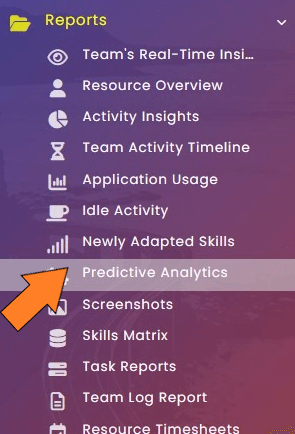
  1. Choose the icon for reports from the sidebar menu. A drop-down menu will show up.

    AI Task Description feature

  2. From the menu, choose Predictive Analytics icon which will open a new page.
  3. You can choose any specific resource and timeframe for which you want an analysis of their performance.

    AI Task Description feature

  4. Select Go button and all the prediction fields will be populated