Resource Performance Evaluation
Performance evaluation reports provide insights into various aspect of the resource utilization, efficiency, and productivity for your organization. The reports can be useful for making decisions, allocating funds, and improving operations.
PerXL provides you with the functionality to create the evaluation reports for each resource individually or for various selected resources. The performance evaluation report is based on the Project performance (including updates, milestones achieved, project completion rates, etc.), resource allocation, productivity analysis(like time-to-delivery ratio, task completion rates, etc.), cost analysis, and planning.
Prerequisites to create Evaluation Reports in PerXL
- By default only user with manager and the admin roles are permitted to create the evaluation reports for the various reources within the organization./li>
-
Resource whose evaluation report is to be generated must be an active member of the organization and should have been assigned tasks for a given month.
- PerXL client programme (user agent) software must be installed on the user's computer whose report is to be created.
Note: The Active member refers to the resources who are currently working in the organization. The status of a resource can be changed in the settings for the resource management.
Creating Evaluation Reports
valuation reports creation involves several steps of gathering and analysing data. The analysed data is presented in a meaningful way to you in the form of a system generated report which the admin or person creating the evaluation can download for future references.
How to create an individual evaluation report?
- Click on the Reports icon in the sidebar menu.
-
A drop-down menu will then show up containing the report name options.
-
Choose the Performance Evaluation option in the drop-down menu.

-
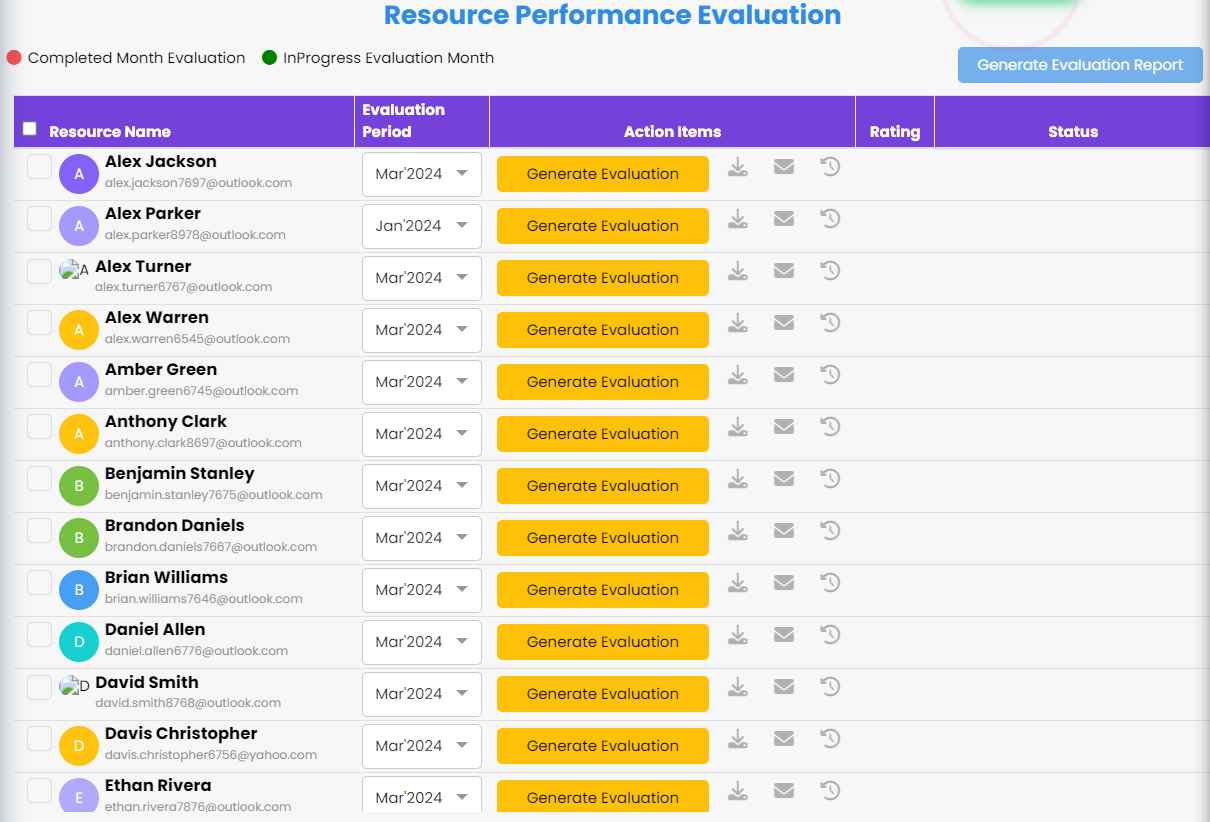
The Resource Performance Evaluation window will open up on the screen. The current webpage will contain the list of all the resources in the organization.
-
Alongside their names it will have a dropdown to select the evaluation period and beside that it will have an icon Generate Evaluation under Action items header. Click on that icon.
-
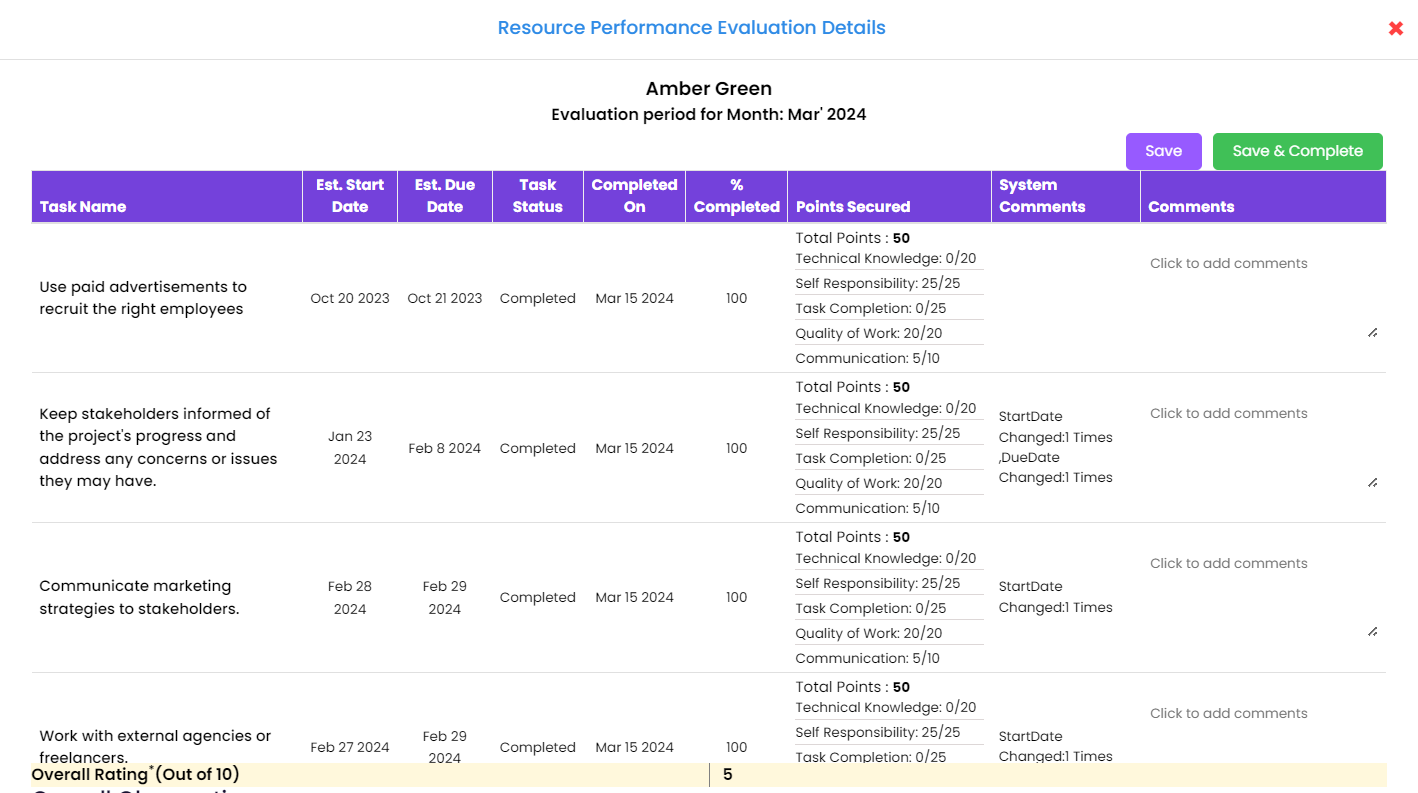
Your evaluation report will open up once the processing is done in the server.
- Use the Panning icon right beside the activity timeline to focus on specific sections without losing context.
-
Clicking on Home icon beside Panning icon will reset the timeline.
Note: You can click on the resource name for a detailed resource overview.
How to create multiple evaluation reports?
- Follow the 1-4 as mentioned above.
-
Select the checkboxes available beside the resources for which you want the evaluation report for, from the given list.

-
Once the selection is complete click on the icon at the top right corner of the current page.
-
Your evaluation report will start generating for all the resources which meet the criteria for the report creation as discussed above.
Editing a Performance Evaluation Report
After a report has been created you have an option to edit the performance evaluation report. You cannot edit the system generated values that would have been saved or generated when the task was completed, total budget used, budget spent, etc. The admin or manager can only add their comments for each entry.
Note: The Comments addition is only possible after the report generation. If for a particular user you are seeing the Edit option instead of Generate Evaluation for a selected time period only then you can view/edit/add comments in that report.
Follow the given steps to add comments in the report
- Once the report has been generated using the above given steps you can select the report's month in which you need to add comments.
-
Click on the Edit icon beside the resource name and the report opens up.
-
Under the Comments header you will see the space to add comment for each task report summary.
-
After adding the comments in the desired tasks click on Save if you want to edit it next time or want to change the report in future or else you can click Save & Complete to finalize the changes.
Follow the given steps to add comments in the report
- Select the time period for which you want to edit the report's comments.
-
Click on the Edit icon beside the resource name and the report opens up.
-
Under the Comments header you will see the space to add comment for each task report summary.
-
If you want to edit the comment you can click on the edit icon being displayed at the top of each comment that a user might have added.
Downloading the evaluation report
After a report has been created you can download the soft copy of the evaluation report in the pdf format.
You can select the time frame of the report corresponding to the reource name on the list and simply click on the  beside the resource name. The resource's performance evaluation report will be downloaded.