Activity Tracking in PerXL
Using PerXL, you can perform "Activity Monitoring"
to keep tabs on and monitor your resources'
activities while they use corporate assets.
To ensure workers make effective use of their time,
PerXL offers features like monitoring
"Application usage", taking "Screenshots",
and monitoring idle time via "Idle activity"
in the reports section.
You can pinpoint areas for workflow, training,
or resource allocation enhancements to maximize productivity
and performance by monitoring resource activities.
Prerequisites to use Activity Monitoring
- You must have selected the workforce option in the plan.
-
You must have a manager or admin account, which by default contains the permissions to view this report.
- The PerXL client program must be installed on the user's computer.
Application Usage
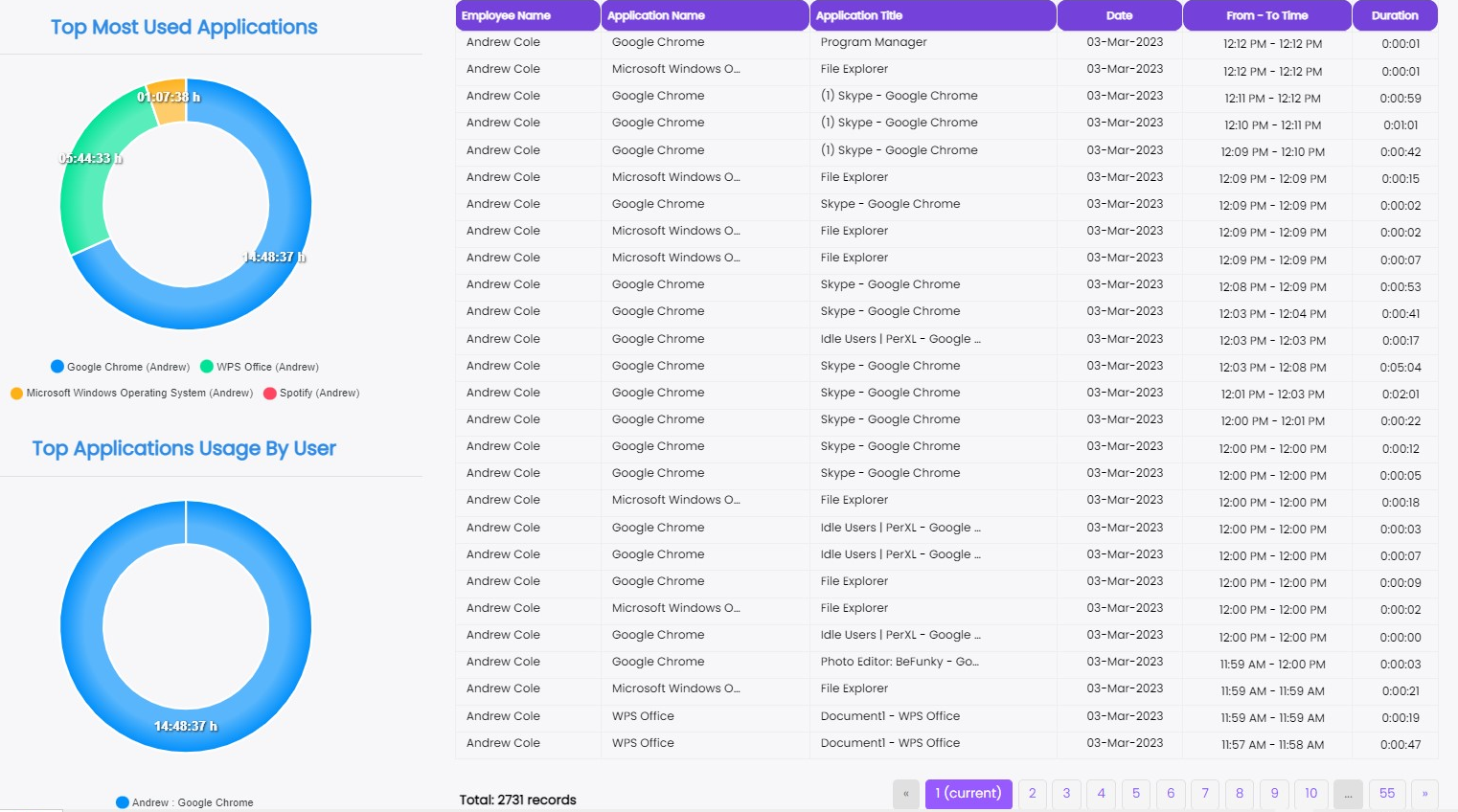
You can track how much time your resources
devote to different programs using the Application
Usage Report section. It tracks the time each user
spends on various applications and provides a
comprehensive analysis of the data,
enabling you to monitor and improve productivity.
Steps to view the Application Usage of a resource
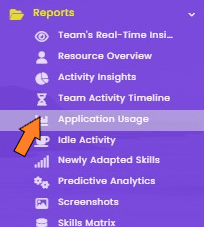
- Click on the Reports icon in the sidebar menu.
-
A drop-down menu will then show up.
-
From the menu, choose Application Usage icon.
-
A new page will open up.
-
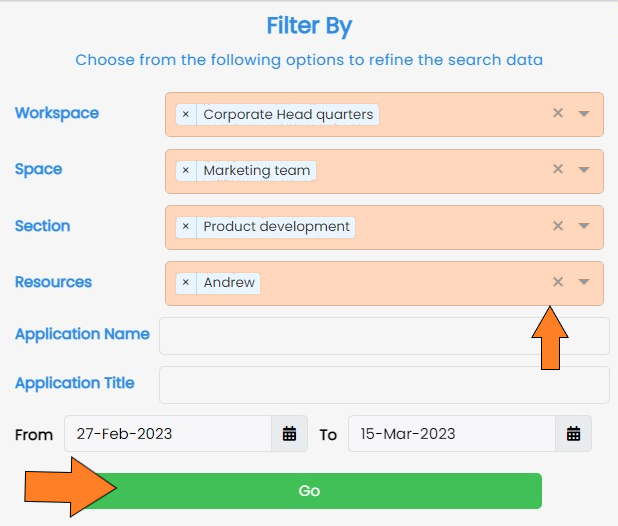
Choose the Workspace, Space, and Section names together with timeframes and resource names by clicking
 the button in the top right corner of the page.
-
Click the Go button to view all the applications a resource has used and how much time they have spent on each.
Idle activity
This will calculate how much of a working day is spent idle for each resource member. This essential statistic gives managers information about the production level of their resources. A team member who is frequently idle is either having trouble with their work or is neglecting to perform it.
How to check Idle Activity
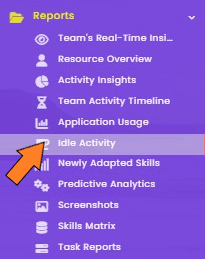
- Click on the Reports icon in the sidebar menu.
-
A drop-down menu will then show up.
-
From the menu, choose Idle Activity icon.
-
A new page will open up.
-
Choose the required fields like resource name(s), workspace name, timeframe, etc. and select Search button.

-
Click the Go button to view all the applications a resource has used and how much time they have spent on each.
Note: You can modify the "idle time minutes " property, which indicates the number of minutes after which a person would be deemed idle, at the top of the current page.
-
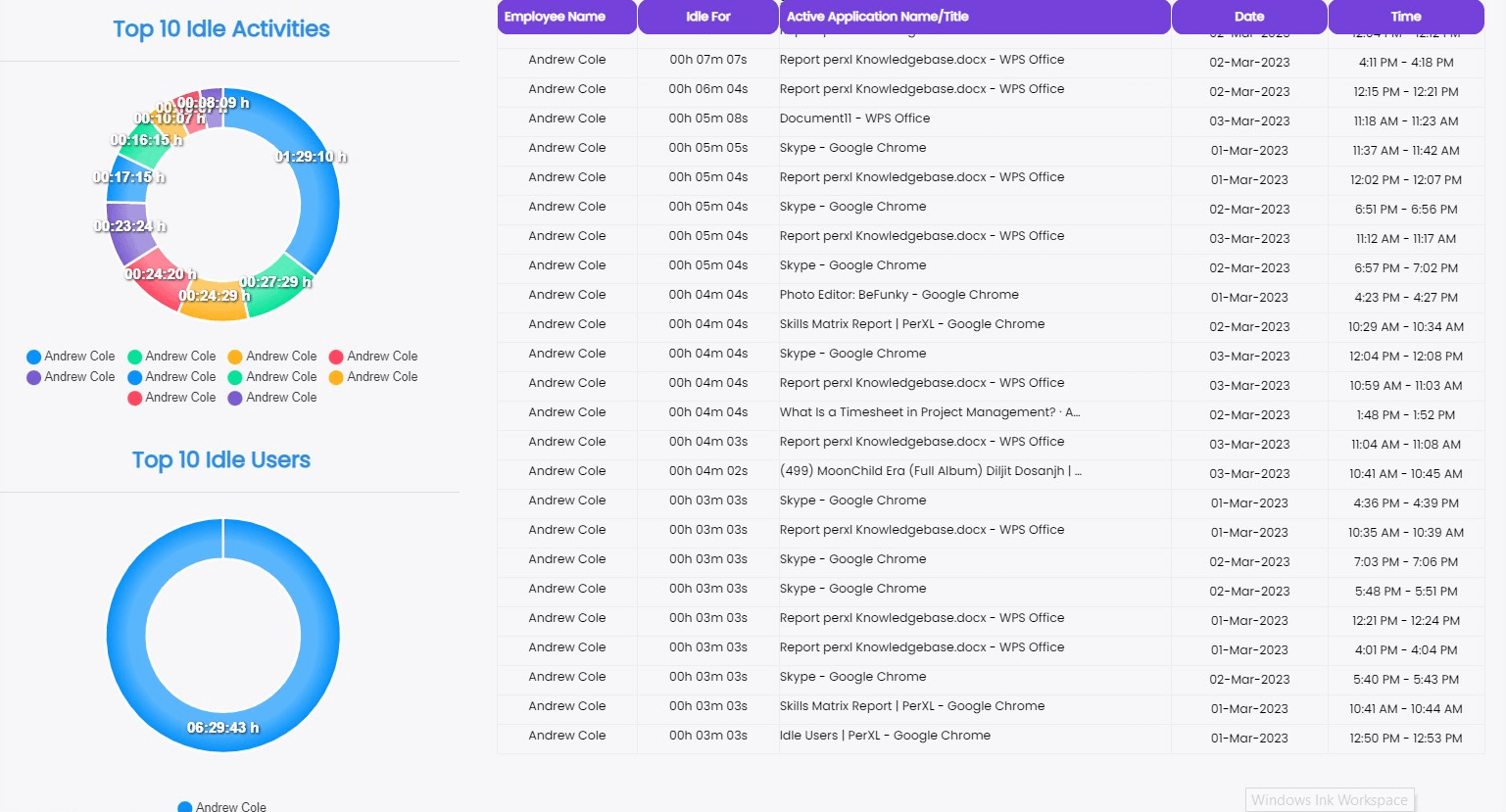
The page will display the required data with headers such as Employee name, Idle for, Application name, date and time.
-
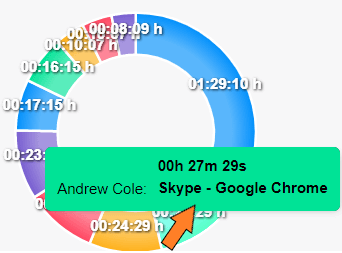
You can hover over the different section of the graphs to know more information the application used or resource who used it.
Screenshots
Every five minutes or at any other custom time you choose in the "Workforce management settings," a screenshot of the resource's system will be taken. This is done to make sure that your resources are productive and effectively utilising available corporate resources.
How to view Screenshots?
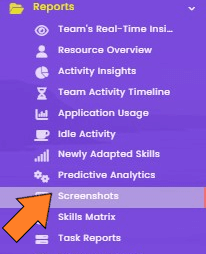
- Choose the icon for reports from the sidebar menu. A drop-down menu will show up.
-
From the menu, choose Screen shots icon.
-
A new page will open up.
-
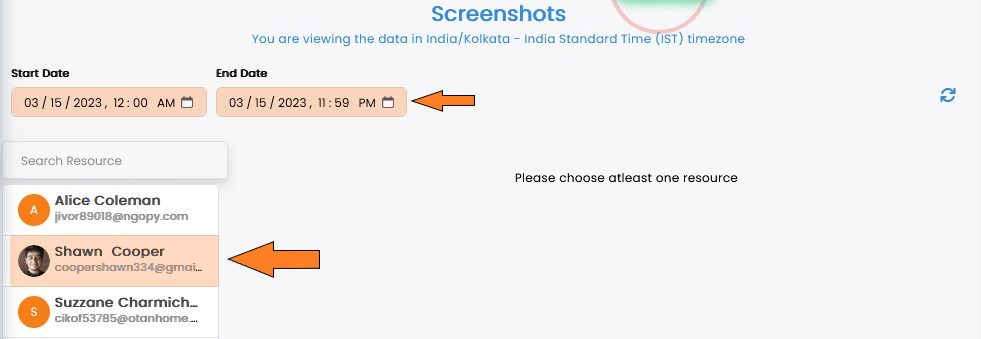
Choose the required fields like resource name(s), workspace name, timeframe, etc. and select Search button
-
The page will display the screenshots of the selected resource along with the time and date.

-
Click the Go button to view all the applications a resource has used and how much time they have spent on each.
Note: Click on any screenshot to enlarge it and view it as a gallery.