Task and Team Log Reports
In this article
Task and Team Log Reports assist you in gaining a comprehensive understanding of the activities of your teams and the many tasks being carried out by them, as well as the status of the task, the quality of the work, the amount of time expended, and many other factors.
- By default only the manager and the admin roles are allowed to view reports.
- You can select this workforce management setting for any other custom role.
- PerXL client programme (user agent) software must be installed on the user's computer.
Team Log Report
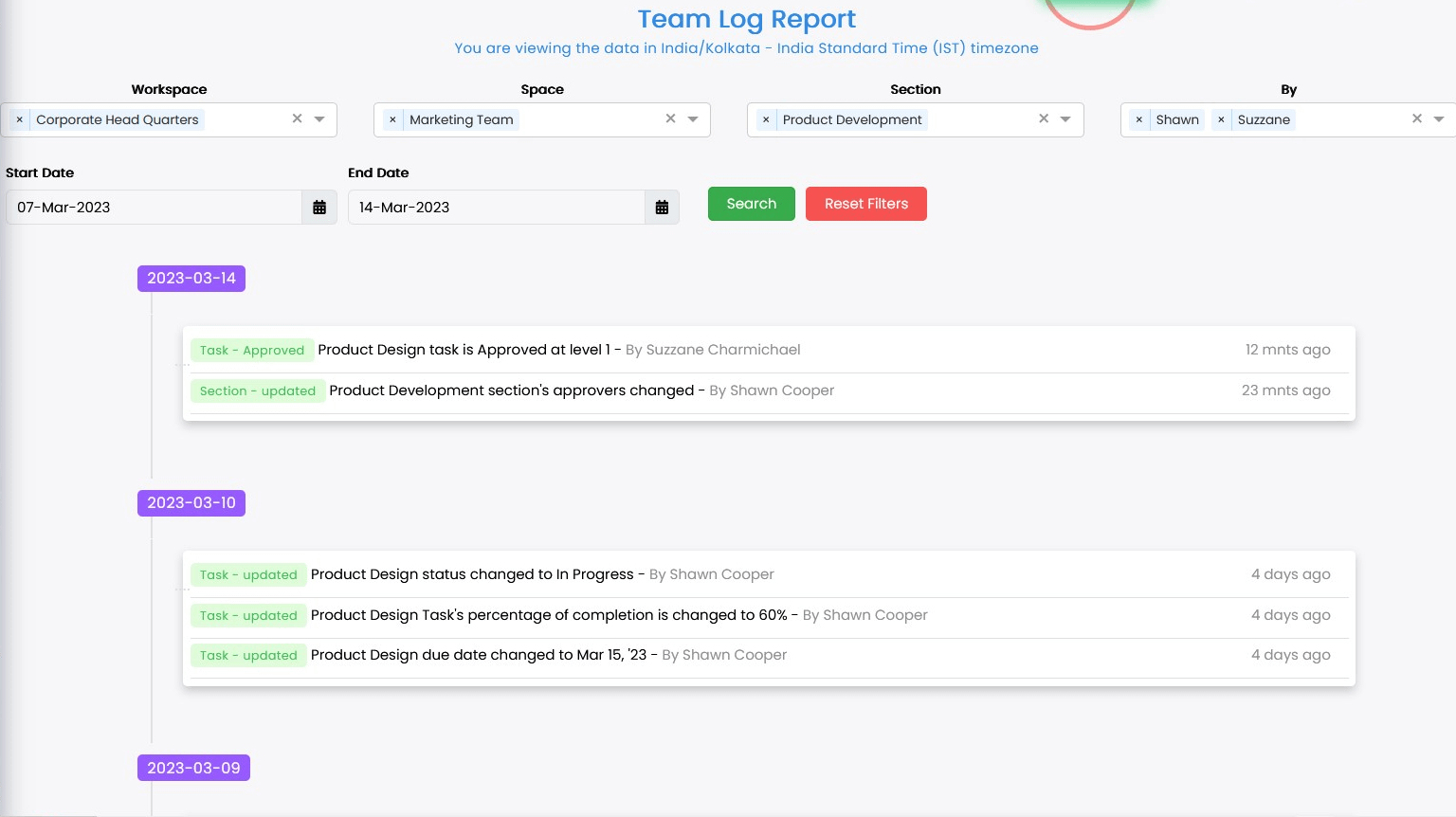
Team log report can help you track the activity of team or individual resources. You can keep track of information on employee attendance, time off requests, task creation dates, and virtually everything that transpired on that day by examining the data in the log report.
How to view Team log Reports?
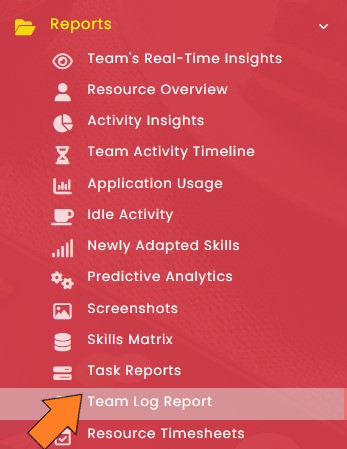
- Click on the Reports icon in the sidebar menu.
- A drop-down menu will then show up.
- Choose the Team Log Report section from the drop-down menu.
- The Team Log Report window will show up on the screen.
- Choose the Workspace, Space and Section name, resource's name, the Start date, the Finish date, and click on Search button after that.
- You will have access to all of the logs for each day for a particular setting, with the date appearing as the headline.

Note: You can only select timeframe and select
Search button. This will display all the
team logs.
Task Reports
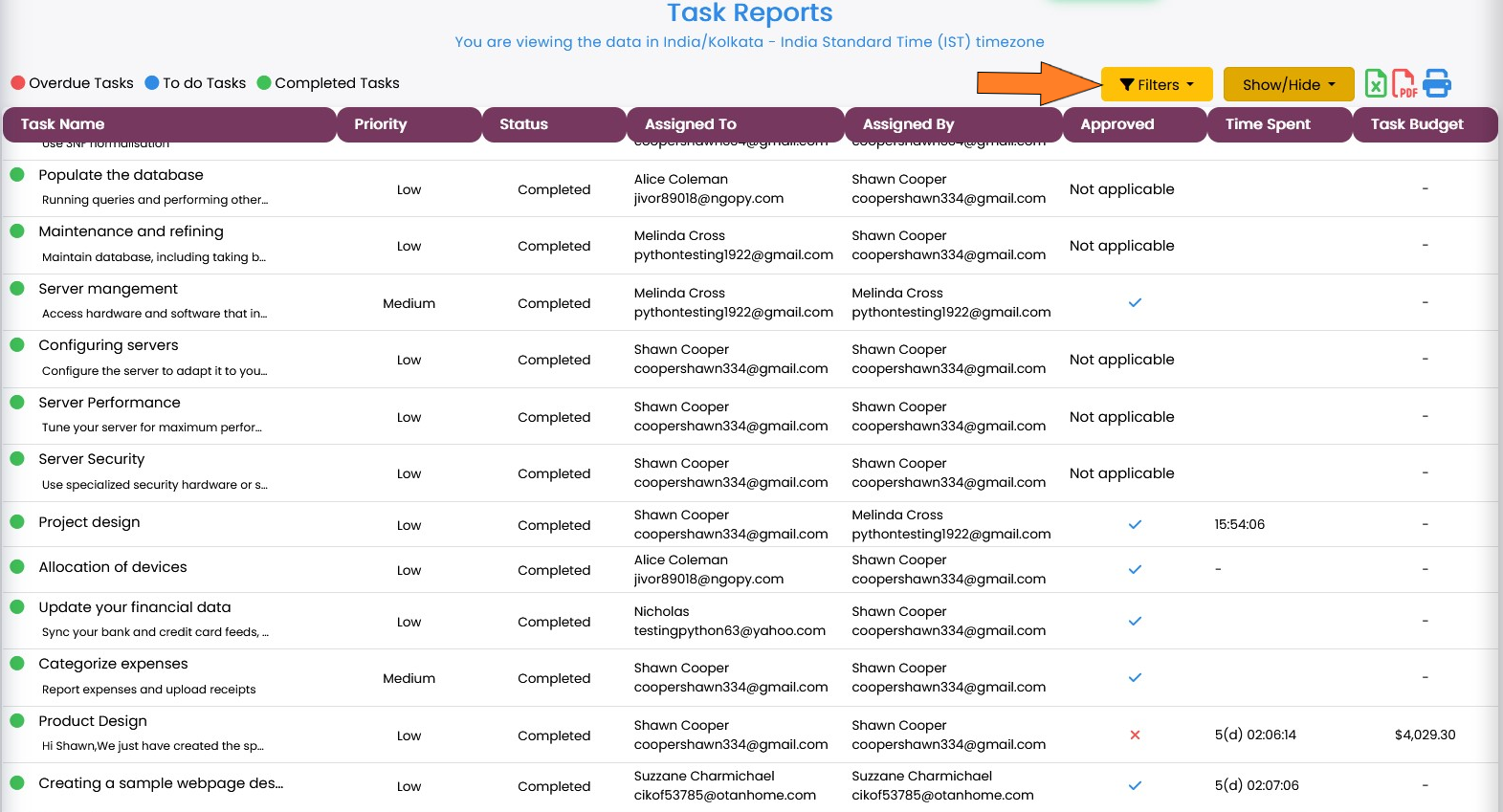
A task report is a sort of report produced by the PerXL programme that offers a summary of tasks that need to be finished, are finished, or are in any stage in between. This report contains information such as the due date, task names, priority level, estimated start and end dates, budgetary allocations, etc.
Using this, you can keep an eye on the task's development and make sure that they are being finished on schedule and to the necessary standards.
How to view Task Reports?
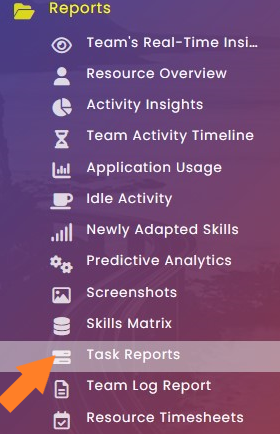
- Click on the Reports icon in the sidebar menu.
- A drop-down menu will then show up.
- Choose the Task Report section from the drop-down menu.
- The Task Report window will show up on the screen containing all the task reports.
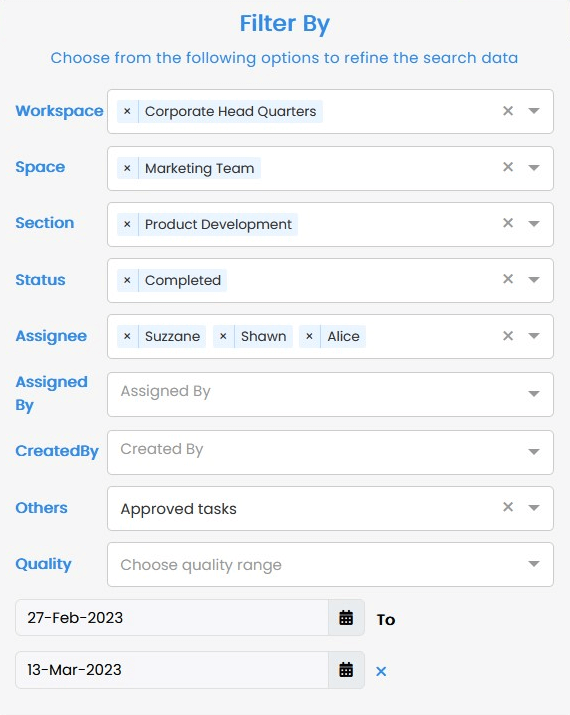
- You can further filter the data by selecting the filter icon at the top of this page.
- You can choose from the available options to apply the required filter.
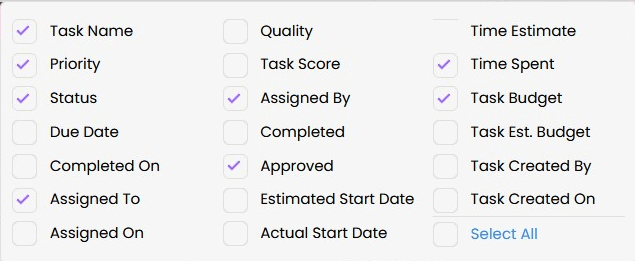
- By using the column selector button you can select or deselect the fields you want in your report.
Note: You can download this report in excel
format or as a PDF by selecting one of these choices at the
top of the current page, or you can just select the print
option to directly print it.