





















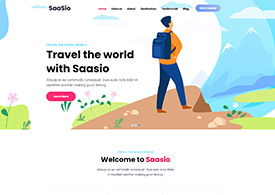

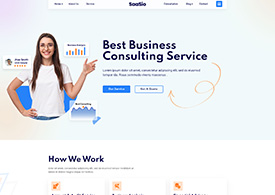
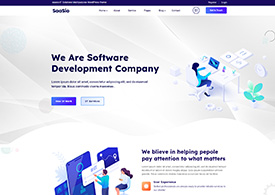

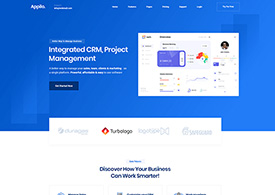







Pre-Built Demos

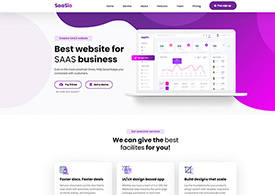
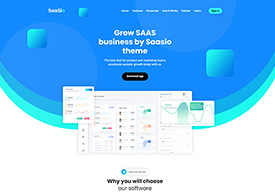
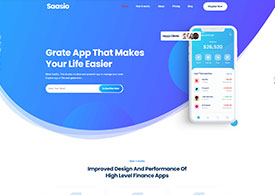
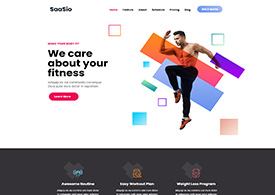
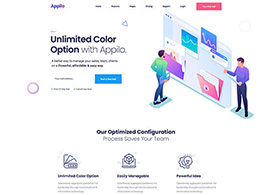
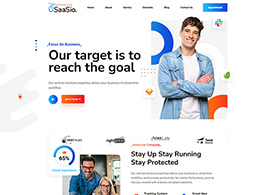
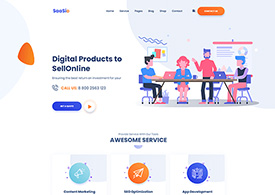
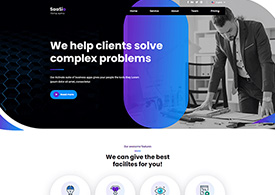
SaaSio comes with a beautiful collection of modern, easily importable, and highly customizable demo layouts.

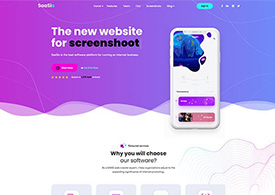
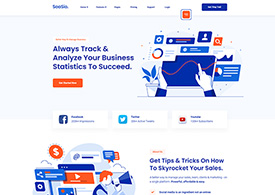
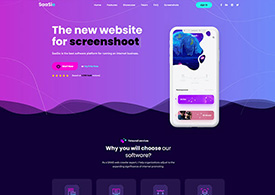
SaaSio Main
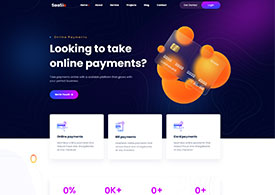
Online Payment
Digital Agency 2023
Digital Marketing 2023
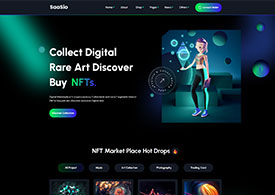
NFT 2023
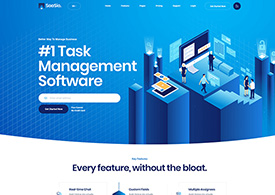
SaaS 2023
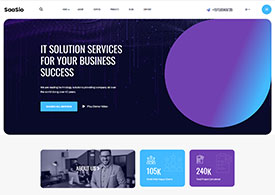
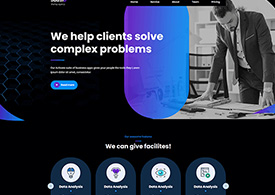
IT Solution 2023
Help Desk
IT solution 2023 (V.2)
Law Firm
Cryto Currency
SaaSio NFT
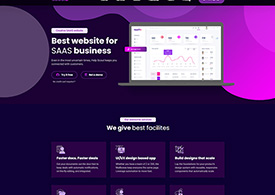
SaaS Classic
SaaS Modern
Digital Agency
Marketing Agency
Digital Marketing
App Landing
Digital Agency 2
Business Consult-4
Personal Portfolio
Creative Studio
IT Solutions-3
Business & Finance
Digital Agency
Business Consulting
Digital Agency
Finance Consulting
Marketing
Gym Fitness
Education
Travel Agency
It solution-2
Business Consult-1
Business Consult-2
Business Consult-3
HR Management
CR Management
Social Media Marketing
Software Management
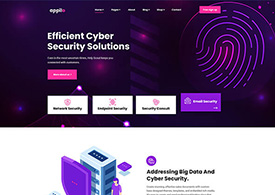
Cyber Security
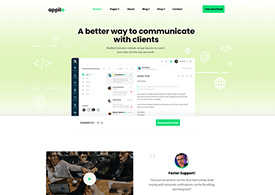
Email Marketing
Web Application
SEO Agency
Resturannt
IT Solutions-1
Digital SEO
Startup Agency
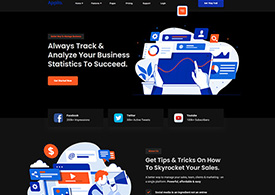
Dark Version Demo
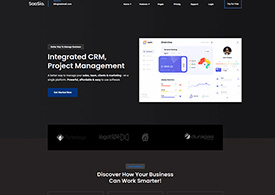
SaaSio Main (Dark)
Dark Version Demo
SaaS Classic (Dark)
Dark Version Demo
Digital Agency (Dark)
Dark Version Demo
StartUp Agency (Dark)
Dark Version Demo
HR Management (Dark)
Dark Version Demo
SMM (Dark)
RTL Version Demo
SMM (RTL)
RTL Version Demo
Digital Agency (RTL)
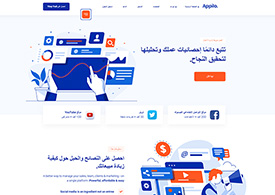
RTL Version Demo
SaaSio Main (RTL)
RTL Version Demo
HR Management (RTL)
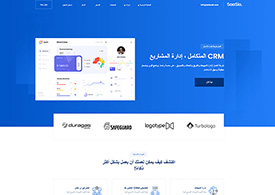
RTL Version Demo
CR Management(RTL)
Sign In Get started

Auto Assign Task Creation

The AI Auto Assign Tasks feature helps managers and team members quickly allocate tasks to the most suitable resources. By leveraging AI recommendations, it reduces manual effort and ensures that tasks are distributed efficiently among team members.

Who can create a Auto Assign Task?

  1. Any user role with the required permissions to create and assign tasks can execute this. Administrators can configure custom roles with these permissions.
  2. Anyone can create a Auto Assign Task in the current section if they have the access to view it

Note: Please see the Settings section of PerXL hierarchy tofind out more about who can assign a task and who can edit or change task properties.

How to create a Auto Assign Task?

Steps to view the Application Usage of a resource

  1. On your workspace in the sidebar menu select a Space and then click on it.
  2. Select the Section/Project name in which you want to describe the task
  3. On the top right corner of the window click on icon

    AI Task Description feature

  4. This would open Choose tasks and resources to be assigned window. This window displays a list of available tasks.

    AI Task Description feature

  5. Select one or more tasks from the list and click Next to proceed.

    AI Task Description feature

  6. On the next screen, choose the resources you want to assign to the selected task(s). AI will suggest resources based on their skills, workload, and past task history.

    AI Task Description feature

Finalizing Assignment

After selecting the appropriate resources, click on the Assign Tasks button. The system will automatically allocate the selected tasks to the chosen resources. Once saved, you can view the assignments in the Task Details page under the “Assigned To” section.